
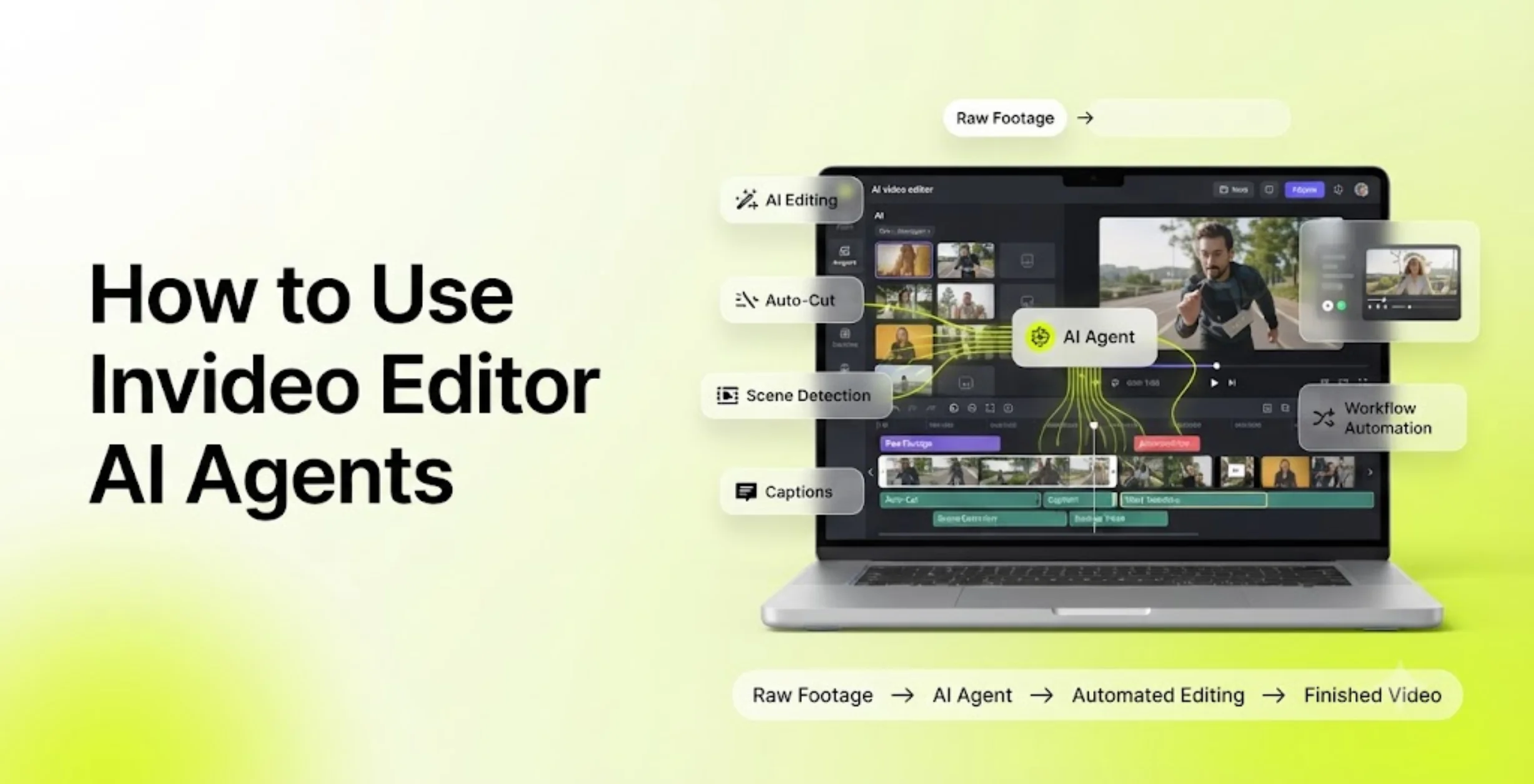
Video editing often starts with the most time-consuming task: sorting through hours of raw footage, removing mistakes, cutting unnecessary pauses, and creating a usable first draft. For many creators, the actual creative process begins only after spending hours on repetitive editing work.
With invideo editor AI agents, creators can automate much of this early editing process. Instead of manually reviewing every clip, you can give an AI agent instructions, upload your footage, and let it help build an editable timeline that you can refine further.
This guide explains how to use invideo editor AI agents to edit raw footage automatically, from uploading clips to creating a rough cut and improving the final timeline.
What Are Invideo Editor AI Agents?
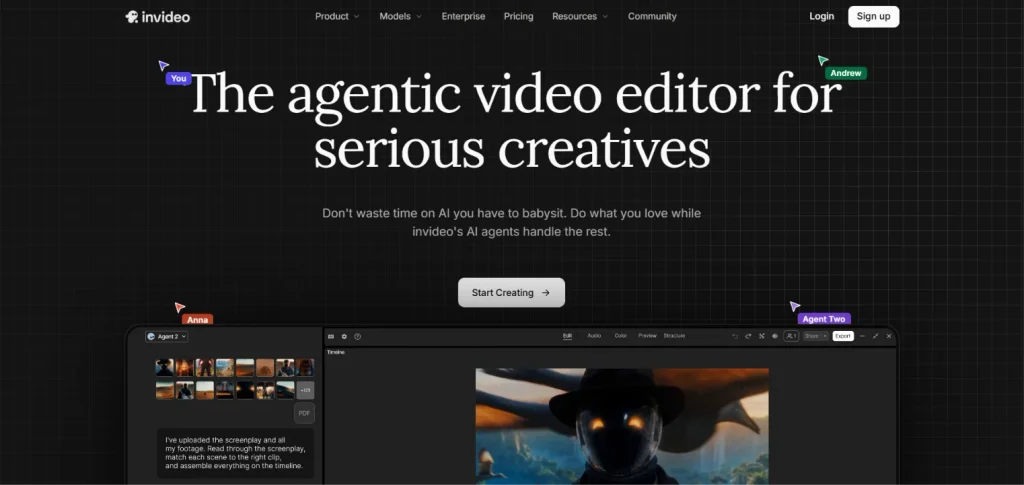
Invideo editor AI agents are AI-powered assistants designed to help creators perform editing tasks through natural language instructions.
Rather than manually performing every action inside a timeline, creators can describe what they want the editor to do. The AI agent can analyze uploaded footage, identify sections that need editing, organize clips, and assist with tasks such as removing unnecessary parts, improving pacing, and preparing a first-pass edit.
For example, instead of manually searching through a long recording, you can instruct an AI agent:
“Remove silent sections, cut mistakes, and create a faster-paced version of this video.”
The AI agent then works on the timeline based on your instructions.
This approach combines traditional editing workflows with AI-assisted editing features such as automatic analysis, timeline assistance, and smart editing decisions.
Why Use AI Agents for Raw Footage Editing?
Raw footage usually contains:
- Long pauses
- Repeated takes
- Mistakes during recording
- Unnecessary sections
- Uneven pacing
- Background noise
- Clips that need better organization
Traditional editing requires manually watching footage, making cuts, and arranging clips. AI-assisted workflows help reduce the time spent on repetitive tasks so creators can focus on storytelling and creative decisions.
Some common uses include:
- Creating a first draft from long recordings
- Removing unnecessary sections
- Improving video pacing
- Preparing YouTube videos
- Editing interviews and talking-head videos
- Creating short-form content from longer footage
AI-assisted editing workflows commonly include features such as text-based editing, automatic transcription, filler-word removal, auto captions, AI scene detection, and automatic reframing.
Step-by-Step Guide: Editing Raw Footage With Invideo Editor AI Agents
Step 1: Open the Invideo editor Timeline
Start by opening the invideo editor timeline environment.
The timeline editor provides a workspace where you can:
- Import video files
- Organize media
- Create projects
- Work with AI agents
- Preview edits
- Refine the timeline
The timeline-based workflow gives creators more control compared with simple template-based video creation.
Step 2: Create a New Project
Create a new project inside the timeline editor.
A clean project setup helps organize your:
- Raw video clips
- Audio files
- Edited sequences
- Final versions
For example, you might create separate projects for:
- YouTube videos
- Podcast edits
- Client projects
- Social media clips
Good project organization is an important part of professional video editing workflows.
Step 3: Upload Your Raw Footage
Import the footage you want the AI agent to edit.
Your footage could include:
- Camera recordings
- Screen recordings
- Interviews
- Vlogs
- Product videos
- Training videos
Once your clips are uploaded, the AI agent can analyze the available media and help create an initial edit.
For example, a creator recording a 60-minute tutorial can upload the complete recording instead of manually reviewing every minute.
Step 4: Create Your Invideo Editor AI Agent
The next step is creating an AI agent that understands your editing goal.
When creating an agent, define its role clearly.
Examples:
- For YouTube videos: “You are a YouTube video editor. Remove boring sections, improve pacing, and keep the most engaging parts.”
- For interviews: “You are responsible for editing this interview by removing unnecessary pauses and creating a clean conversation flow.”
- For social media clips: “Turn this long video into engaging short-form content with fast pacing and strong hooks.”
Clear instructions help the AI agent understand the desired editing style.
Step 5: Give the AI Agent Editing Instructions
The quality of your results depends heavily on your instructions.
Instead of giving vague commands like:
“Edit my video.”
Provide specific editing goals.
- Better examples:
- “Analyze this footage and remove mistakes, long pauses, and repeated sections.”
- “Create a rough cut with strong pacing for a YouTube audience.”
- “Remove unnecessary silence and keep the most valuable information.”
- “Prepare a 60-second short-form version from this recording.”
- Detailed instructions help the AI agent make better editing decisions.
Step 6: Let the AI Agent Analyze Your Footage
After receiving your instructions, the AI agent reviews your uploaded footage.
During this stage, it can help identify:
- Important sections
- Unnecessary clips
- Editing opportunities
- Timeline structure
This is similar to creating an initial assembly cut in a professional editing workflow.
An assembly cut is the first organized version of a project where selected footage is placed together before detailed editing begins.
Step 7: Review the AI-Generated Rough Cut
Once the AI agent creates a timeline, review the result.
Check:
- Story Flow: Does the video make sense from beginning to end?
- Pacing: Are there sections that feel too slow?
- Clip Selection: Did the AI choose the strongest moments?
- Audio: Does dialogue sound clear?
- Structure: Does the introduction capture attention?
AI editing creates a strong starting point, but human review remains important for creative decisions.
Step 8: Refine the Timeline Manually
After the AI creates a rough cut, you can continue editing.
Common refinements include:
- Adjusting clip timing
- Adding transitions
- Improving audio
- Adding captions
- Applying color corrections
- Adding motion graphics
- Reframing videos for different platforms
Professional editing workflows usually combine automated assistance with creative human control.
Step 9: Improve Audio and Visual Quality
After the structure is complete, focus on finishing touches.
Common improvements include:
Audio Editing
You can refine:
- Dialogue clarity
- Background music levels
- Audio balance
- Noise reduction
Audio workflows may include techniques such as dialogue cleanup, audio ducking, normalization, and mixing.
Color Improvements
You can adjust:
- Exposure
- Contrast
- Color balance
- Overall visual style
Color correction and grading are essential steps in professional video finishing.
Step 10: Export Your Final Video
Once your timeline is complete, export the final version.
Before exporting, check:
- Video resolution
- Aspect ratio
- Audio quality
- Captions
- Platform requirements
For example:
- YouTube → 16:9 landscape
- Shorts/Reels/TikTok → 9:16 vertical format
Auto-reframing and vertical editing workflows are becoming essential for modern social media production.
Best Prompts to Use With Invideo Editor AI Agents
Here are useful prompts creators can try:
- Remove Mistakes: “Review this footage and remove mistakes, repeated sentences, and unnecessary pauses.”
- Improve Retention: “Edit this video for audience retention. Remove slow sections and keep the strongest moments.”
- Create a YouTube Edit: “Create a YouTube-ready rough cut with engaging pacing and clean transitions.”
- Create Social Media Content: “Turn this long video into short-form clips suitable for social media.”
- Improve Interview Editing: “Edit this interview by removing filler words and creating a natural conversation flow.”
Benefits of Using Invideo Editor AI Agents
- Save Editing Time: AI agents reduce repetitive editing tasks and help creators move faster from raw footage to a usable timeline.
- Improve Workflow Efficiency: Instead of starting from an empty timeline, creators begin with an AI-assisted draft.
- Help Beginners Edit Faster: New editors can use AI assistance software to understand professional editing structures.
- Support Professional Editors: Experienced editors can use AI agents for preparation tasks while focusing on creative decisions.
Final Thoughts
Invideo editor AI agents provide a new way to approach video editing by combining artificial intelligence with traditional timeline workflows.
Instead of spending hours manually reviewing raw footage, creators can upload their clips, provide editing instructions, generate a rough cut, and refine the results.
For beginners, AI agents make video editing more accessible. For experienced editors, they provide a faster starting point for professional projects.
The future of video editing is not about replacing editors; it is about giving creators smarter tools that remove repetitive work and leave more time for creativity.