
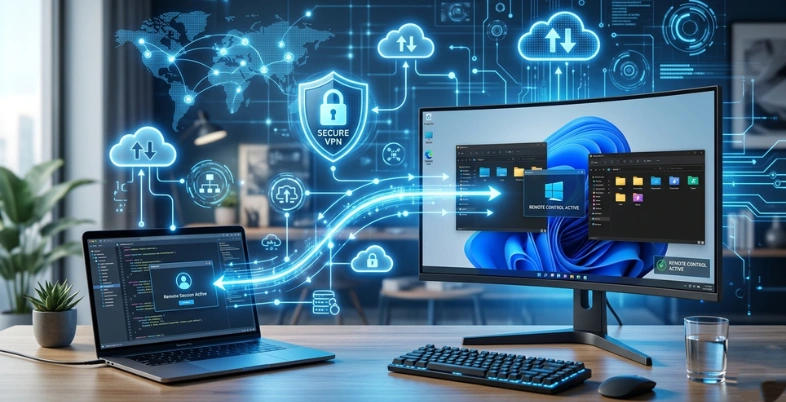
Modern businesses and individuals increasingly rely on flexible work environments, making it essential to access computers and systems from anywhere. Remote Access Software allows users to securely connect to a device located in another place and control it as if they were physically present. This technology is widely used by IT teams, businesses, and remote employees to manage systems, troubleshoot technical issues, and transfer files efficiently.
By creating a secure connection between devices, these tools help reduce downtime and improve productivity. Many platforms also include features such as file sharing, session monitoring, and multi-device support. In this article, we will explore the best tools available and how they help users manage computers remotely with greater convenience and efficiency.
What are Remote Access Software Works
Remote Access Software is a type of technology that allows users to connect to and control a computer or device from a different location through the internet or a network. With this software, a person can view the screen of another computer, access files, run applications, troubleshoot issues, and manage systems as if they were physically present in front of the device.
This technology is widely used by IT professionals, businesses, remote employees, and technical support teams because it makes it possible to manage computers without needing to be in the same location. For example, an IT technician can remotely fix a system problem, install software, or update configurations on an employee’s computer without visiting the office. It is particularly useful for organizations that rely on cellular internet connectivity to support remote work and device management.
How Remote Access Tools Work
Remote access tools create a secure connection between two devices, usually through the internet. The user installs the software on both the host device (the computer being accessed) and the client device (the computer used to access it). Once connected, the user can see the host computer’s screen, control the keyboard and mouse, transfer files, and perform administrative tasks remotely.
Many remote access platforms use encryption and authentication methods to ensure secure communication between devices and prevent unauthorized access.
Key Features of Remote Access Software
Remote access platforms typically include several important features that make remote management efficient and secure.
Remote Desktop Control: Users can view and control another computer’s desktop in real time, allowing them to open programs, manage settings, and perform tasks remotely.
File Transfer: Many tools allow users to transfer files between the local and remote devices, making it easy to share documents, install software, or retrieve important data.
Multi-Device Access: Remote access software often supports connections between different devices such as Windows PCs, Macs, Linux systems, smartphones, and tablets.
Secure Connection: Most modern tools include encryption, multi-factor authentication, and access permissions to protect sensitive information and prevent unauthorized access.
Session Recording and Monitoring: Some platforms allow administrators to record remote sessions or monitor activities for security, training, or compliance purposes.
Benefits of Remote Access Tools
Improved Remote Work: Employees can securely access their office computers from home or while traveling, making remote work more efficient and flexible.
Faster Technical Support: IT teams can troubleshoot problems and fix technical issues quickly without needing to physically access the device.
Better Business Productivity: Businesses can manage systems, servers, and employee devices remotely, reducing downtime and operational delays.
Centralized System Management: Organizations can monitor and maintain multiple computers or servers from one location, improving IT management efficiency.
Common Use Cases
Remote access software is used across many industries and scenarios, including:
- IT helpdesk and technical support
- Remote work and telecommuting
- Server and network management
- Software installation and system updates
- Training and remote collaboration
List of 15 Best Free Access Software
1.TeamViewer
Website: teamviewer.com/
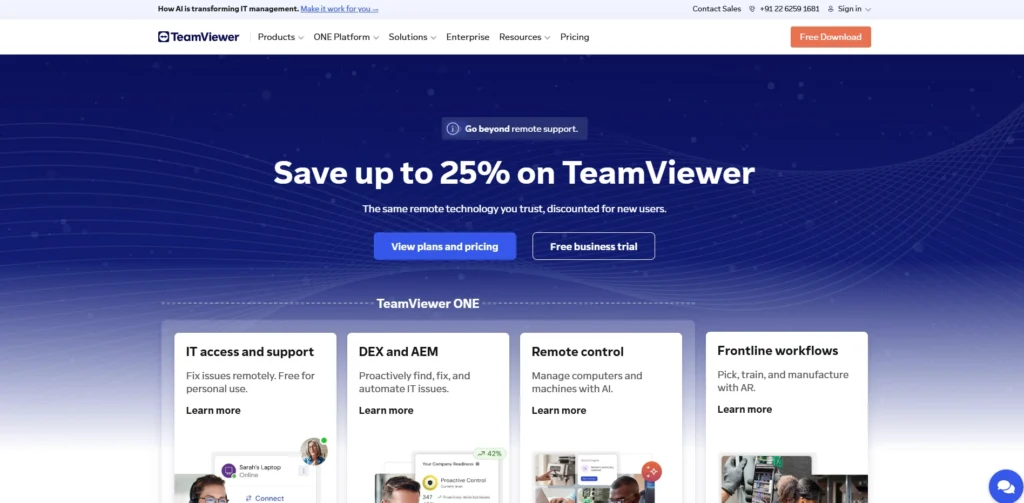
TeamViewer is a popular Free Remote Access Software that allows you to establish a connection with any computer globally. You can troubleshoot issues, transfer files, and manage a remote desktop easily. The free version is ideal for personal use, such as helping a family member or accessing your home PC. It works on many operating systems, offers strong security to protect your data, and provides smooth high-definition video connections. It is reliable, simple to use, and requires payment only if you need it for commercial purposes.
Key features:
- Unattended access
- Multiple monitors
- Recording of the session
- Wake-on-LAN
Pros:
- Fast connection speeds
- Highly secure encryption
- Cross‑platform support
Cons:
- Commercial limits apply
- Connection problems periodically.
- Resource‑heavy application
2. Chrome Remote Desktop
Website: remotedesktop.google.com
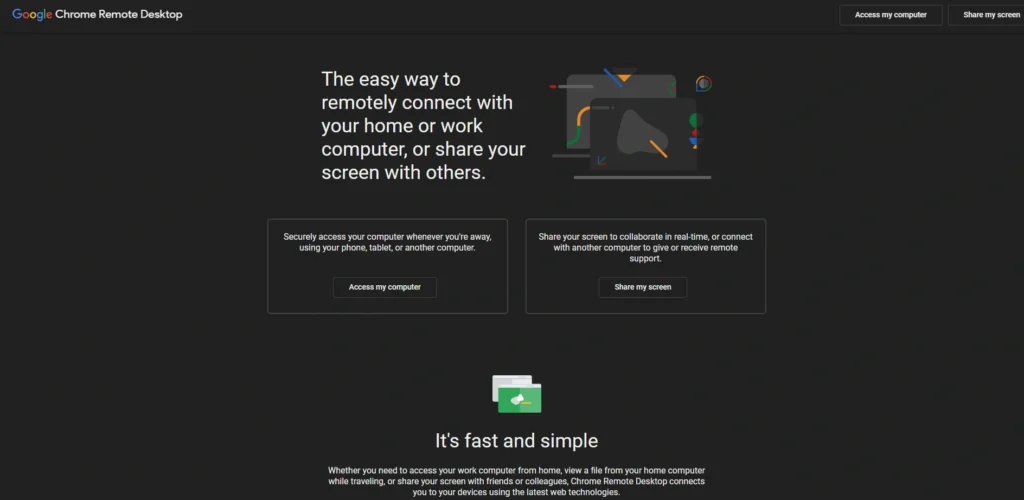
Chrome Remote Desktop is an addon that transforms your chrome browser into a remote control center, a lightweight addon. It needs no complex setup. All you need to do is install the extension, set up a PIN, and you are able to connect to any PC using any device, including phones. It is entirely open to every application. It is easy, quick, and safe, and it is a preferable option in case you wish to have a light tool.
Key features:
- PIN-based authentication
- Real-time display sharing
- Application compatibility on the phone
- Cross-gadget matching
Pros:
- Completely free forever
- Extremely easy setup
- Browser‑based convenience
Cons:
- Lacks advanced features
- No file transfer
- Requires Google Chrome
3. AnyDesk
Website: anydesk.com
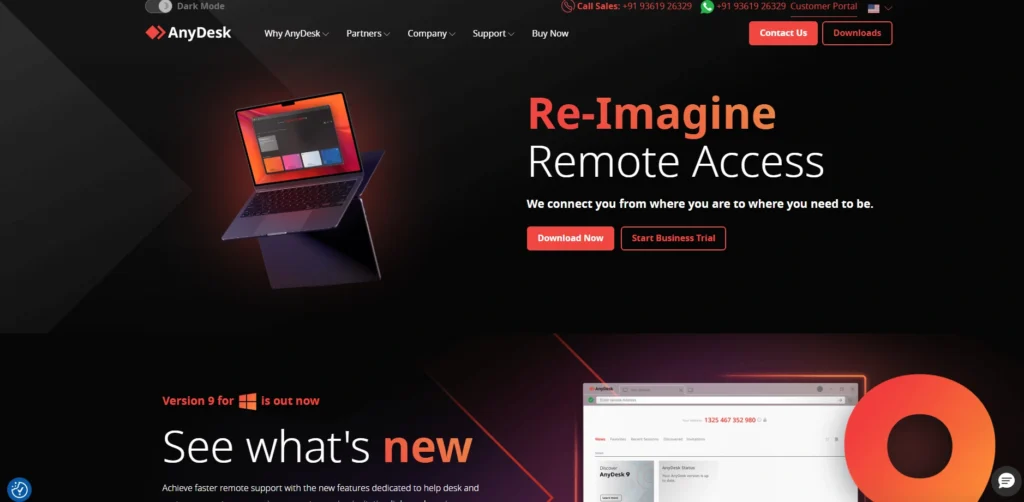
AnyDesk has a reputation for extremely quick and low-latency connections. It uses a special codec to maintain smooth graphics even on slow internet links. The software is lightweight and easy to set up. As a Free Remote Access Software, it offers a free option for personal use that includes file transfer, session recording, and remote printing. AnyDesk is a good choice in case you care about speed and low lag.
Key features:
- custom addresses
- Remote restart functionality
- Drawing on an on-screen whiteboard
- Automatic access
Pros:
- Ultra‑low latency lag
- Tiny installation file
- Reproduction of high quality graphics.
Cons:
- Hard-core business pickup.
- Cluttered user interface
- Limited free support
4. Zoho Assist
Website: zoho.com
Zoho Assist is a help desk application which is a cloud based support system that operates in any web browser. It offers you complimentary long distance techno-care without the need to install large software. You are able to screen share, have more than one screen and data are kept safe through strong encryption. It supports Windows, Macos and Linux. It is best when one requires professional grade remote assistance and does not need an additional expense like a freelance technician would incur.
Key features:
- Voice and video call
- Custom support report
- Restart/reconnect features.
Pros:
- No client installation
- Highly secure connections
- Great multi‑monitor support
Cons:
- Limited free tier
- Requires stable internet
- Slight browser lag
5. Splashtop Personal
Website: Splashtop.com
Splashtop personal allows you to use other computers in the home network. It transmits video and audio in order to play games, watch a movie or use any program that requires a high-speed connection. The free version only works with local networks. The interface is user friendly and is compatible with PCs and phones. It is a decent choice in cases when you would prefer a good media in your living room.
Key features:
- 4K video (40fps) flow
- Distant sound transmission
- Multi-to- multi model
Pros:
- HD Media streaming.
- Very intuitive interface
- Great mobile application
Cons:
- Local network only
- Outside access costs
- No free commercial use
6. RustDesk
Website: RustDesk.com
RustDesk is a free open-source remote management tool, though it is privacy-oriented and fast. It has been written in Rust and begins very quickly. Public servers are free and do not require some setup, but if you want to ensure full control, you can set up your own servers. It is end-to-end encrypted and appropriate to users with advanced technology literacy that appreciate control and privacy.
Key features:
- Self-hosted relay features
- TCP tunneling
- Lightweighted binary files
- End-to-end encryption
Pros:
- Fully open source
- Self‑hosting is possible
- Strong privacy controls
Cons:
- Steep learning curve
- Occasional public lag
- Lacks enterprise support
7. ManageEngine Remote Access Plus
Website: ManageEngine.com
The free version of ManageEngine Remote Access Plus is a complete Free Remote Access Software that can support maintenance for up to ten computers. It allows IT administrators to share screens, run diagnostics, and even communicate through voice or video chat. The tool is very powerful but can be a bit complicated to install. It works best for small teams that want strong remote management features without paying a high cost while still maintaining full control.
Key features:
- Remote registry editor
- Inbuilt task manager
- Wake on LAN
Pros:
- Advanced diagnostic tools
- Voice and video
- Great free allowance
Cons:
- Complex initial setup
- Overwhelming for beginners
- Heavy system resources
Also read
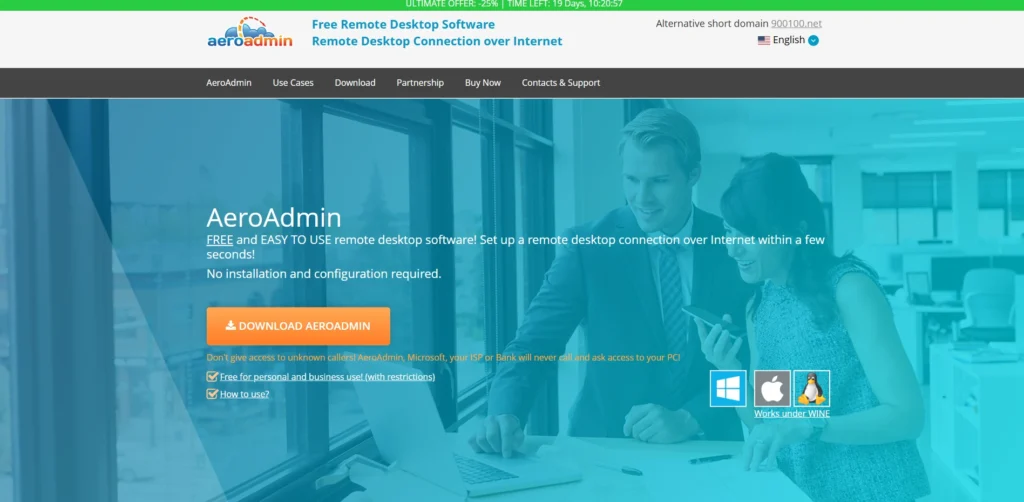
8. AeroAdmin
Website: AeroAdmin.com
AeroAdmin is constructed to be straightforward. Get a small file, provide the ID, and you are connected right away, you do not have to install anything, or change the network. It is not dependent on firewalls and employs strong encryption. It is sweet in case of urgent assistance when time is a major factor and the user is not tech-savvy.
Key features:
- SOS messaging
- Unattended access
- Inbuilt address book
- Transparent proxy
Pros:
- Zero configuration networking needed
- Bypasses complex firewalls
- Very lightweight file
Cons:
- Dated user interface
- Basic feature set
- Free session limits
9. TightVNC
Website: TightVNC.com
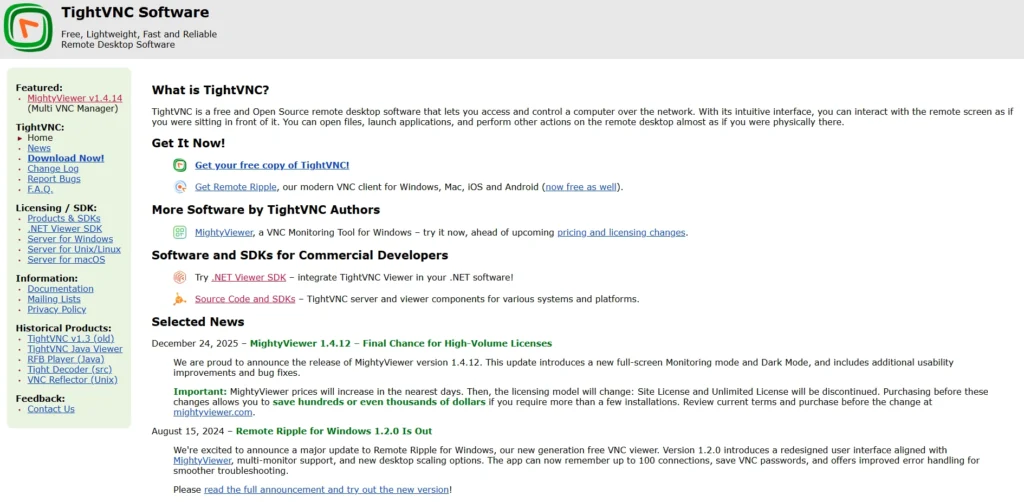
Another open-source VNC tool that can be helpful on a slow network has been called using TightVNC, and it uses a tighter compression. It is open-source and may be used both commercially and personally. It is old-fashioned to some extent, but it is stable and very customizable. It is a good option when it comes to the management of servers or legacy machines.
Key features:
- Tight encoding of slow internet
- Java viewer
- IP based access control
- Compatibility with old operating systems
Pros:
- Free for businesses
- Great on slow internet
- Extremely adjustable preferences.
Cons:
- Very dated interface
- No built‑in encryption
- Manual port forwarding
10. UltraVNC
Website: uvnc.com/
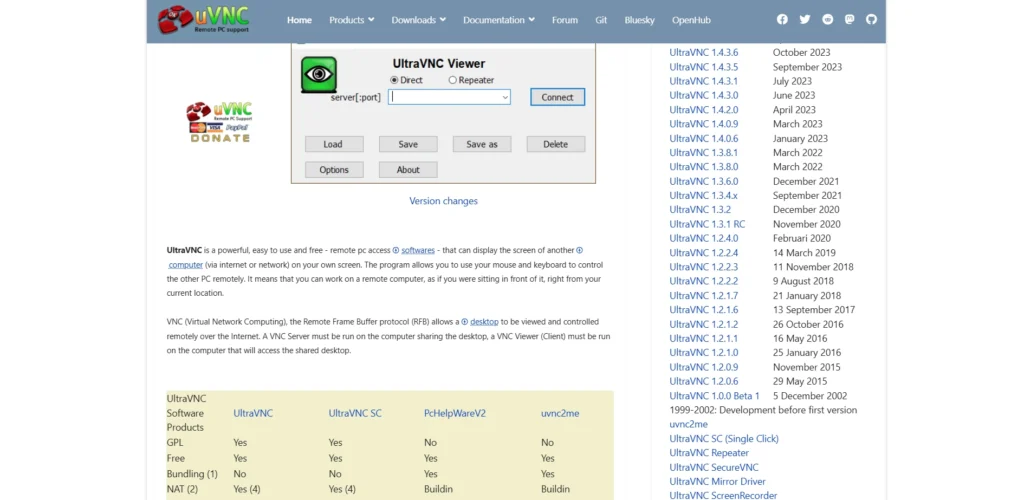
UltraVNC is a free Windows tool that introduces additional functionalities such as chat, file transfer, and special video drivers to reduce lag. This free remote access software is community-based and does not have commercial boundaries. Network specialists will be best suited to seek a solution that is highly configurable.
Key features:
- Data encryption plug‑in
- MS Logon authentication
- Built‑in text chat
- Custom viewer scaling
Pros:
- Advanced video drivers
- Integrated chat system
- No commercial restrictions
Cons:
- Windows only
- Requires network knowledge
- Setup is tedious
11. DWService
Website: DWService.net
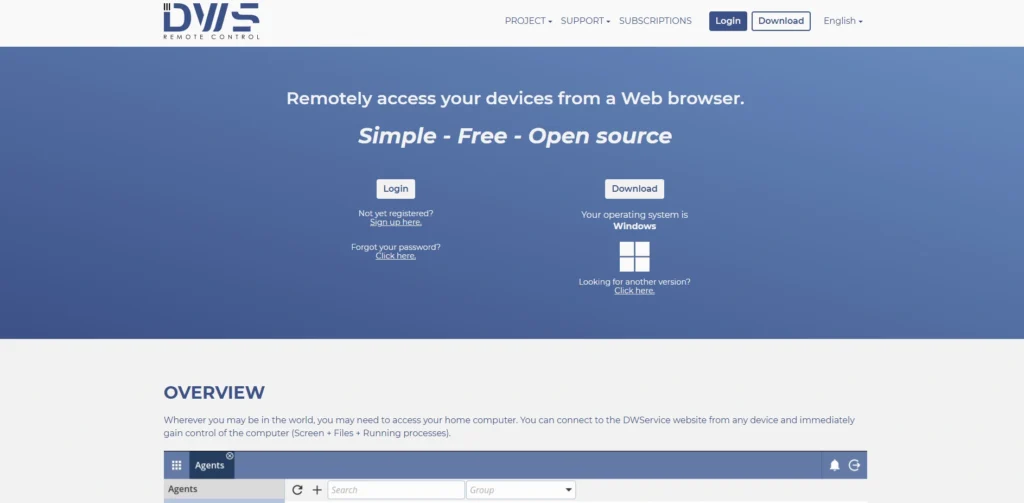
DWService is a Web based remote application which requires a small agent to be installed on the computer it is needed to control. Then you can view the screen through a browser and make changes to files, give commands and so on. Being donation-funded, it is open-source and free. It is convenient to developers or travelers who require full remote experience without the need to add software.
Key features:
- Web-based terminal
- System log watch
- Inbuilt text editor
- Real-time resource monitor.
Pros:
- Access via browser
- Built‑in terminal access
- Cross platform agent support.
Cons:
- Bandwidth limits apply
- Interface feels clunky
- Dependent on web
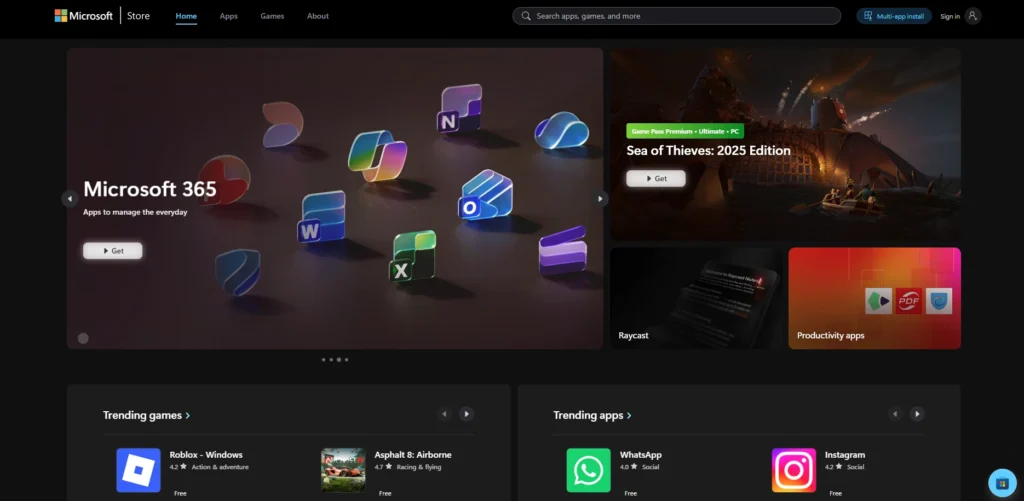
12. Microsoft Quick Assist
Website: apps.microsoft.com
Microsoft Quick Assist is integrated with windows and provides basic out-of-band assistance between Windows computers. It does not need to be downloaded; one simply creates a code to share. It takes advantage of the secure servers of Microsoft. It is also quite handy so that friends or family members who may not be tech savvy would be easily assisted.
Key features:
- Windows guide laser pointer
- Built-in windows integration
- Pause/resume session buttons
- UAC prompt support.
Pros:
- Pre‑installed on Windows
- Virtually impregnable links.
- No download required
Cons:
- Windows to Windows only
- Lacks file transfer
- Requires Microsoft account
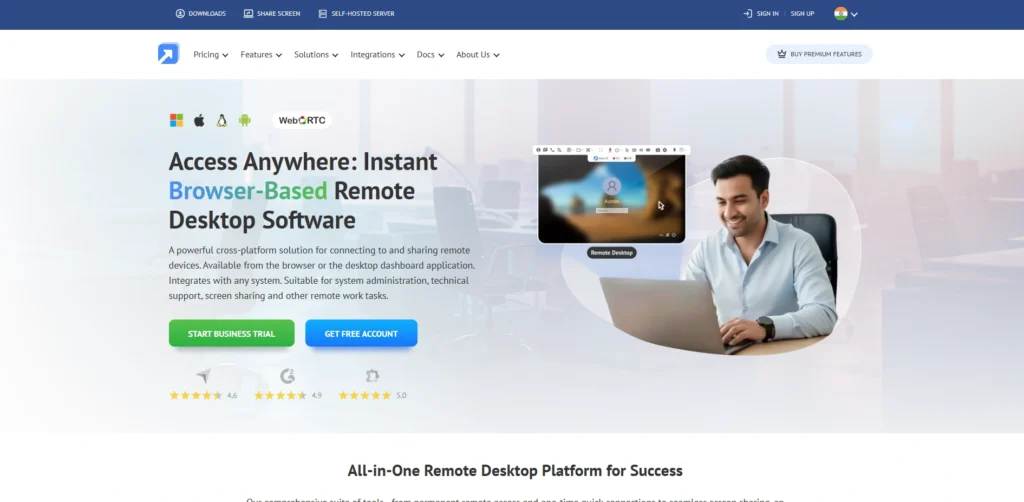
13. Getscreen.me
Website: Getscreen.me
Getscreen.me is a remote access tool that is purely browser based and does not require any type of software download. You are able to be connected to a few devices. It offers clip board syncing, file transfer and recording of a session. It is suitable when people want to have maximum convenience and a modern feature, but the number of devices is limited and a fee is paid on the commercial application.
Key features:
- Immediate connection via links
- Telegram messenger support
- Remote control via a smartphone
- Clipboard synchronization.
Pros:
- Hyperlink real-time linkages.
- No software required
- Modern user interface
Cons:
- Device limits apply
- Requires fast browser
- Paid commercial use
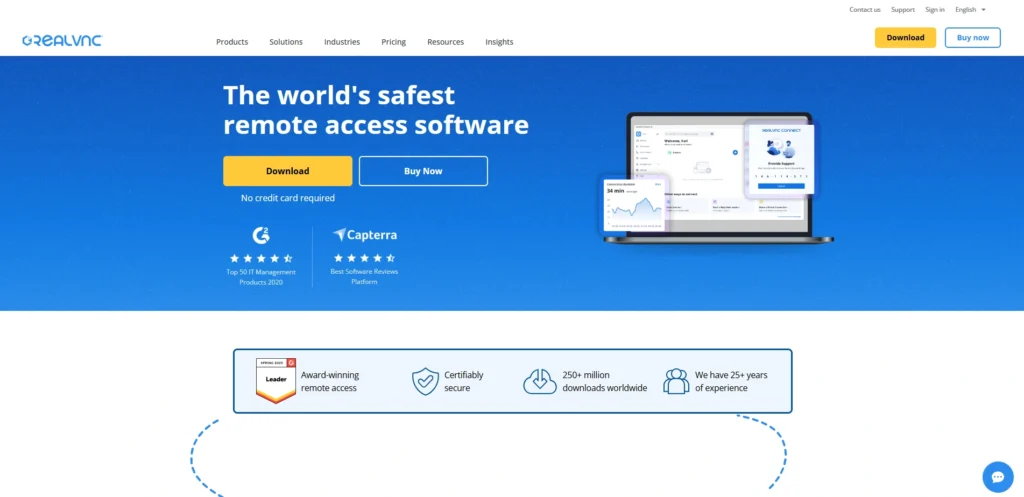
14. VNC Connect (Home)
Website: RealVNC.com
VNC Connect by RealVNC provides enterprise-oriented security to the home users. It provides a free Home tier that has a high level of encryption and multi-factor authentication, as well as a free sharing feature across numerous devices. It is positioned to target home users with the same level of safety as a business product.
Key features:
- Multi-factor authentication
- Access permissions
- High-speed HD streaming
- Secure cloud brokering.
Pros:
- Business-level data safety.
- Multi-factor user authentication.
- Highly polished software
Cons:
- Limited home features
- Account creation required
- Non commercial policy is strict.
15. Windows Remote Desktop
Website: microsoft.com
Windows Remote Desktop is an in-built feature in Windows Pro and Enterprise that works as Free Remote Access Software. It provides strong integration and fast performance across a local area network or a VPN connection. It does not require additional subscriptions or downloads. It is fully compatible with Windows operating systems and supports useful features like clipboard sharing and multiple monitor functionality.
Key features:
- RemoteFX graphics engine
- linked with Active Directory
- Local printer redifferentiation
- Smart card authentication.
Pros:
- Deep Windows integration
- Transporting great visual acuity.
- Zero subscription cost
Cons:
- must have a Pro / Enterprise host.
- Port forwarding necessary
- Poor mobile experience
Comparison Table of Free Remote Access Software
| Software | Supported Platforms | Unattended Access | Security Features | Best For | Free Version Limits |
|---|---|---|---|---|---|
| TeamViewer | Windows, macOS, Linux, Android, iOS | Yes | AES-256 encryption, 2FA | Personal remote support | Commercial use restricted |
| Chrome Remote Desktop | Windows, macOS, Linux, Android, iOS (via Chrome) | Yes | PIN authentication, Google security | Simple personal access | Limited advanced features |
| AnyDesk | Windows, macOS, Linux, Android, iOS | Yes | TLS 1.2 encryption, device authentication | Fast remote desktop access | Free only for personal use |
| Zoho Assist | Windows, macOS, Linux, Android, iOS | Yes | SSL encryption, multi-factor authentication | IT support & helpdesk | Limited free tier sessions |
| Splashtop Personal | Windows, macOS, Android, iOS | Yes | TLS encryption, device authentication | Home network access | Works only on local network |
| RustDesk | Windows, macOS, Linux, Android, iOS | Yes | End-to-end encryption, self-host option | Privacy-focused users | Requires setup for best performance |
| ManageEngine Remote Access Plus | Windows, macOS, Linux | Yes | Role-based access, SSL encryption | IT administrators | Free for up to 10 devices |
| AeroAdmin | Windows | Yes | AES-256 encryption | Quick remote support | Session limits in free plan |
| TightVNC | Windows, Linux, macOS | Yes | Basic authentication | Server management | No built-in encryption |
| UltraVNC | Windows | Yes | Encryption plugin support | Advanced network users | Complex setup required |
| DWService | Windows, Linux, macOS | Yes | HTTPS encryption | Browser-based remote access | Bandwidth limits |
| Microsoft Quick Assist | Windows | No | Microsoft secure servers | Quick tech support | Windows-only |
| Getscreen.me | Windows, macOS, Linux | Yes | SSL encryption | Browser-based remote control | Device limits |
| VNC Connect (Home) | Windows, macOS, Linux, Raspberry Pi | Yes | End-to-end encryption, MFA | Secure home remote access | Non-commercial only |
| Windows Remote Desktop | Windows | Yes | Network-level authentication | Windows system administration | Requires Windows Pro/Enterprise |
Essential Security Tips for Remote Access Tools
The program that allows one to access another computer establishes a direct connection with the PC and it is highly important to keep it secure. The following measures are useful in ensuring that your data is secured:
- Use Long and Tough Passwords: You should never use default passwords or a password that you are using with your social media. To avoid hacking attempts, create lengthy and extremely large complex passwords with a combination of uppercase letters, mix of numbers, and special characters.
- Regular Software Updates: The threats change on a daily basis and developers introduce patches to block security gaps. Using old outdated remote desktop software may expose you. Get automatic updates, to be sure your programs get an up to date defense.
- Use VPN: When you use an open-source application which requires you to manually forward the port, you are exposing your PC to the open web. Always apply VPN in order to avoid interception of data. It uses encryption to protect all internet traffic and establishes a safe and invisible tunnel to the remote session that hackers cannot use to monitor your work.
Conclusion
Remote access technology has become an essential tool for modern businesses, IT professionals, and individuals who need to manage computers from different locations. With the help of remote access tools, users can easily connect to another device, troubleshoot technical issues, transfer files, and manage systems without being physically present. This capability improves productivity, reduces downtime, and makes remote work more efficient.
The tools listed in this article offer a wide range of features, from simple browser-based access to advanced enterprise-level management. Some platforms are ideal for personal use, while others provide powerful capabilities for businesses and IT support teams. Choosing the right Remote Access Software depends on factors such as security features, supported devices, ease of setup, and the level of control required.
By selecting a reliable platform and following proper security practices, users can safely manage devices remotely and maintain smooth system operations from anywhere.
FAQs
1. Is Free Access Software Safe?
Yes. Reliable software should be used, 2FA must be activated, and the software should be updated. Avoid unverified apps.
2. Can I Use It For Business?
It depends on the license. TeamViewer and AnyDesk limit usage on the free versions to commercial but an open source alternative such as RustDesk, TightVNC, and Chrome Remote Desktop allow commercial use on the free version.
3. Do I Need Fast Internet?
A simple connection will serve simple screen viewing. A 15-20 Mbps link is preferable because of the smooth transmission or file transfer.
4. Can I Access A Turned‑Off PC?
Usually not. The host computer should be online, otherwise it must support Wake-on-LAN (WoL) to boot the computer remotely.