

Electronic paperwork is now the foundation of a working process, and the skill to annotate it effectively may either make or break the productivity. The PDF annotation tools are able to make the otherwise inert files into a dynamic working environment where information is stored, comments created and communication easily realized. Be it a student deconstructing research papers, a professional scanning contracts or a designer writing on blueprints, the appropriate annotation tool will fill the gap between reading and acting.
The problem with selecting the appropriate PDF annotation tool is that it requires you to know what you are going to need, be it highly secure enterprise benefits, stylus-friendly mark-up, or light-weight web-based editing. This is the ultimate list of 10 best PDF annotation tools in the market, their features, strengths and the best cases of their usage as we seek to find the most suitable one that fits your workflow.
Why Annotate PDFs
Annotations of PDF make reading of documents active. Writing notes on files can be used to simplify complicated information, have meaningful cross-team work, and leave a lasting record of feedback and revision. Annotations make sure that all remain in line with project objectives and version control checks occur during the review process.
Common Use Cases
- Academic Research and Study: The academic annotations are used by students and researchers to experience the most important findings, make margin notes, and establish visual relations between the concepts.
- Professional Document Review: The Business professionals mark the contracts, proposals, and reports to give the appropriate structured feedback and trace changes and compliance.
- Preparation of Legal Cases: During this process, documents of evidence, depositions, and case files are annotated extensively with legal arguments that assist legal preparation.
- Design and Engineering Feedback: Architects and engineers can have a look at blueprints, technical drawings, and specifications with the help of annotation tools.
- Educational Assessment and Grading: Teachers post corrections, suggestions, and encouraging comments on the assignments of students.
Benefits
- Increased Transparency and Comprehension: Marking important parts, providing commentary and developing visual aids can enable the reader to process more information and remember more important aspects.
- Efficient Teamwork: Annotation tools of the present day allow having a large number of reviewers at once.
- Complete Version Control: Annotations generate clear version histories of what and who changed something and at what time.
- Efficient Feedback Integration: When the annotations are consolidated, it becomes easy to respond to the comments of reviewers in a systematic manner.
How AI Is Revolutionizing PDF Annotation
The AI has transformed the way we use PDF, radically. Instead of merely offering online versions of physical tools of annotation, AI-based systems can perceive the content of documents, foresee user demands, and perform tedious operations automatically. These smart capabilities reduce time and enhance accuracy and quality of teamwork in various workflows.
Smart Suggestions and Auto-Highlighting
The AI algorithms are used to scan a document and detect and highlight essential information automatically. Depending on the situation, the technology identifies critical words, vital phrases, and other things to do, and manual scanning is not necessary. The highlighting criteria can be customized so that the user can see what is required to fulfill certain needs, be it seeking the terms of a contract, scientific discoveries, or objectives of the study.
Voice-to-Text and Handwriting Recognition
The current tools of annotation can turn verbal data to written comments, and handwritten notes to searchable digital text. This twofold feature can support the various working styles without losing the organization of the documents. An image of recognition becomes more accurate with machine learning and therefore annotations are available irrespective of input mode.
Real-Time Collaboration with AI-Enhanced Tracking
To avoid confrontation and ensure coherence in documents, AI surveillance handles a collaborative annotation session. Smart tracking tracks similar edits and recommends the comment consolidation, informing the team members in question automatically. These characteristics provide a seamless multi-user working process without need of an automated coordination or generation of redundant work.
Sentiment and Context-Aware Commenting
Technology Technologies Advanced AI engage in the analysis of tone in the annotation and context of a document to ensure better communication. It is possible to highlight potentially ambiguous feedback, propose more helpful wording and comments that need action by systems. The context awareness assists annotation in adjusting to document type, formal legal review or informal brainstorming.
Automated Summarization and Content Extraction
AI assistants also create summaries of longer documents that are concise and contain the necessary sections that can be reviewed in particular. This feature makes the users easily locate the areas where they need to annotate through a lot of details as opposed to reading each and every line in a linear fashion. Smart extraction is able to minimize the cognitive load and still cover the entire document.
You Might Like: NoteGPT Alternatives
Quick Comparison Table
| Name | Key Features | Free/Paid | Ease of Use | Output Quality |
| Adobe Acrobat | Enterprise security, OCR, redaction, Microsoft integration | Paid | Moderate | Excellent |
| Drawboard PDF | Pressure-sensitive inking, real-time collaboration, cross-platform sync | Freemium | Easy | Excellent |
| Notability | Apple Pencil optimization, audio sync, AI study tools | Freemium | Easy | Very Good |
| PDF-XChange Editor | Extensive annotation toolkit, OCR, dynamic stamps | Freemium | Moderate | Very Good |
| Microsoft Edge | Built-in browser tool, basic markups, Read Aloud | Free | Very Easy | Good |
| Goodnotes | Handwriting search, shape recognition, notebook organization | Paid | Easy | Excellent |
| Xodo | Cross-platform support, cloud integration, browser-based | Freemium | Easy | Good |
| Wondershare PDFelement | AI Sidebar, Office-style interface, OCR capability | Paid | Easy | Very Good |
| PDF Annotator | Offline functionality, auto-smoothing, measurement tools | Paid | Moderate | Very Good |
List of 10 Top AI-Powered PDF Annotation Tools
1. Adobe Acrobat – Best for Secure and Compliance-Driven Workflows
The Adobe Acrobat, an industry-standard application, is defeating many organizations in their quest for structured PDF transactions with business-worthy security and compliance. Acrobat suits well to the environments of a professional setting where utmost precision and traceability matter deep down, and it boasts an entire range of advanced document management and annotation features. It integrates nicely with M365 and SharePoint and brings teams together to follow a near-uniform review process in complex organizational settings.
Key Features
- OCR Process
- Third-Party Integration with Microsoft 365
- Redaction Tool Certification
- AI Personal Assistant Options
Pros
- Business Standard Security Features
- Unrestricted Editing
Cons
- Inconsistent Pricing
- A little on the higher side concerning a design office style.
- Grab-and-go requirement for software enhancement.
Pricing: Acrobat Standard starts at $12.99/month
Website: adobe.com/acrobat
2. Notability – Best for Studying and Note-Based PDF Annotation on Apple
Notability connects both iPad and Mac devices in the student arena, where PDF annotation rates high on note organization. The app is designed for studious young ones and for would-be users of the Apple ecosystem so that it could correspond in real-time with the organizational features allowing the student to keep the course materials nearby and searchable.
The hallmark of the audio recorder allows the user to be tracking the lectures while the audio files with timestamps play along with the user’s handwritten notes so that one can repeat the lectures by tapping on his or her notes.
Key Features
- Apple Pencil Pre-Setting
- Synced Annotations on Audio Files
- Study Organized Subjects with the Aid of AI
- Searchable Handwritten Interface
Pros
- Simple interface for the student
- Smooth Apple compatibility
- Audio recording sync
Cons
- Apple Platform
- No Collaboration
- Nothing Much for WorkEnvironment-Wide Use
Pricing: Plans start at $14.99/year
Website: notability.com
3. Drawboard PDF – Best for Pen-Like Markups and Real-Time Collaboration

Drawboard PDF is an application that provides professional-quality annotation capabilities and defaults to a pen interface. The program captures pressure-sensitive writing with outstanding accuracy and includes snap-to-shape functions that help even non-artists create clean and professional-looking markups.
This synergistic combination makes Drawboard especially effective when an architect reviews a blueprint, an engineer marks up a technical drawing, or a teacher gives detailed feedback on an assignment.
Key Features
- Pressure Sensitivity for Inking
- Mark Numbering in Real-Time
- Cross-Platform Synchronization
- Calibrated Measurement Instruments
- Reusable Template Library
Pros
- True handwriting
- Has great collaboration
- Is available on Mac, Windows, and Android.
Cons
- Learning Curve
- Limited functionality on a subscription model
- Not the easiest of transcribers to one’s aid in text work tasks
Pricing: Free Basic plan available.
Website: drawboard.com
4. PDF-XChange Editor – Best for Tool-Heavy Solo Work on Windows PC
The PDF-XChange Editor brings monumental annotation capacity for any PDF edition packed into an ultra-compact, small-footprint Windows desktop application. Some of them are an editor meant for power users who prefer more advanced features and desktop capabilities over mobility or collaboration, annotations, sticky notes, callouts, stamps, free hand ink, plus OCR, comparison, and redaction.
The Plus version will also comprise dynamically stamped sites with reviewer information added automatically to obtain perfect feedback attribution.
Key Features
- Internet-app functionality
- Highlighting and commenting
- Inking tool for free-hand annotations
- Read-Aloud
- Simple Signature
Pros
- Needs no installation
- Entirely free
- Accessible instantly
Cons
- Very little possibility for customization.
- Just the basics of a feature
- No tools to help with collaboration.
Pricing: Free version available
Website: pdf-xchange.com
5. Microsoft Edge – Best for Quick, No-Install PDF Markups in the Browser
PDF-MS Edge drawing almost unbelievable annotation tricks for PDF-ing, the flagship utility bundled into the browser, hence no more talking on the install-at-markup-functions-basic. Supporting highlights, text markups, mouse freehand, touch, or pen drawing-for the use as a lecture note, quick document viewer, or light editing tool right away. Digital signature feature-giving one the ability to sign a file by scribbling on the page.
Key Features
- Browser-based functionality
- Highlight and comment
- Tools freehand ink
- Read Aloud
- Simple signature
Pros
- No installations required
- Entirely free of charge
- Available instantly
Cons
- Customization possibilities low.
- Basic sets of features
- No collaboration tools.
Pricing: Completely free
Website: microsoft.com/edge
6. Wondershare PDFelement – Best for AI-Assisted Annotation in an Office PC Layout
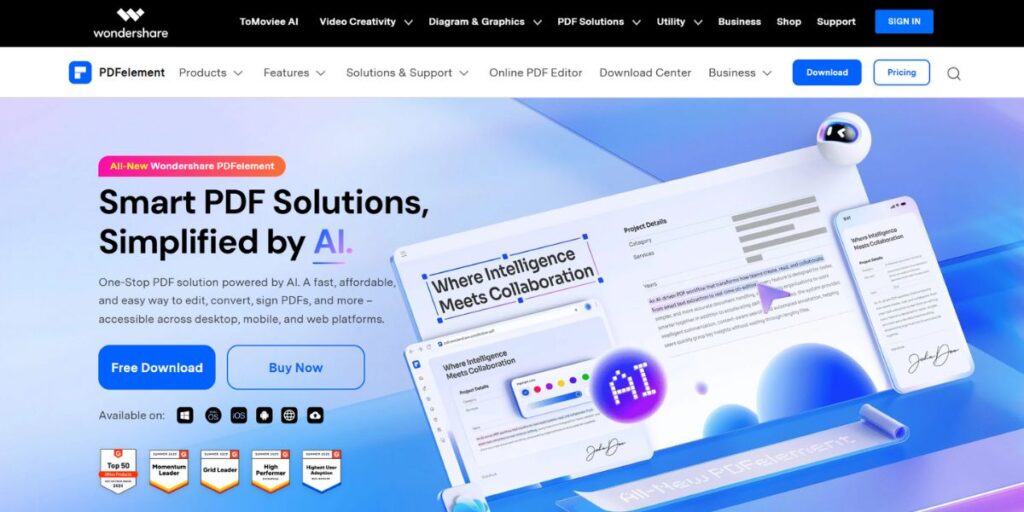
Wondershare PDFelement incorporates an interface that runs easily with the Office-like appearance. Annotation tools like highlight, comment, and free drawing are now made very familiar by PDFelement. Its look resembles that of the ribbon Microsoft Office applications have always used; it will seem familiar to anyone who has ever worked with any Microsoft Office app. It now provides highlight, comment, and freehand drawing-tool creation with recognition to allow editing, commenting, and searches on scanned pages. This is what customers finally got to receive in what they always found to be an attractive package; in the past, they would sometimes have had to depend upon their old office software in favor of the PDF support.
The AI Sidebar moves even far back into so many in-process tasks within the narrative, almost waiting to start the annotating. It handles tasks like summarizing document content, translations, or rewriting that which got flagged for possible plagiarism. This approach focuses on what really needs markup instead of going through each item one at a time.
Key Features:
- Works perfectly with the Apple Pencil.
- Turns handwriting into text.
- The physics of shapes are recognized.
- Study quizzes are formed by AI.
- Backs up to a cloud. Good old days-
Pros:
- Writing is smooth.
- Well organized.
- Search handwritten notes.
Cons:
- Apple and nothing else.
- Need to pay for each version.
- Teamwork features are extremely limited.
Pricing: Annual plans start at $79.99
Website: pdfelement.wondershare.com
7. Goodnotes – Best for Organized Handwriting and Structured PDF Study on Apple
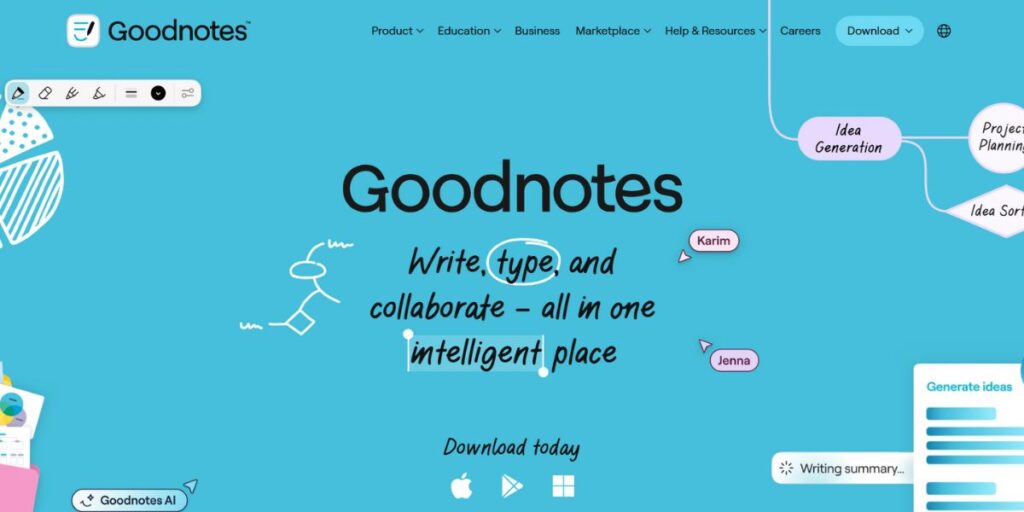
Goodnotes is a very powerful annotating app for note-taking on handwritten and PDF documents. Goodnotes is prevalent on iPads, iPhones, and Macs. The app accommodates Apple Pencils-shape recognition, ruler and lasso selection tools, to assist in creating neater and cleaner diagrams. It can also track hand-written content alongside typed materials-whether annotated or not-in reading.
Importing PDFs is the critical feature that allows some notebooks in Goodnotes to receive much attention. For example, it allows users to attach reading materials with appropriate notes to their organized folders, making it a convenient option for students who often download study files from sources like a PDF Drive alternative for offline use. Free play and the AI Study suite give summaries and quizzes to help with reviewing, while AI Studies can stand alone or be used in conjunction.
Key Features:
- Goes everywhere (web and apps).
- Standard marking tools.
- Can scan the text (OCR).
- Sign documents.
Pros:
- Can be accessed from any device.
- Simple. Clear.
- Works with cloud storage.
Cons:
- No collaboration live.
- Basic pen support.
- Missing high advanced features.
Pricing: Plans start at $11.99/year
Website: goodnotes.com
8. Xodo – Best for Cross-Platform, Browser-Based Annotation
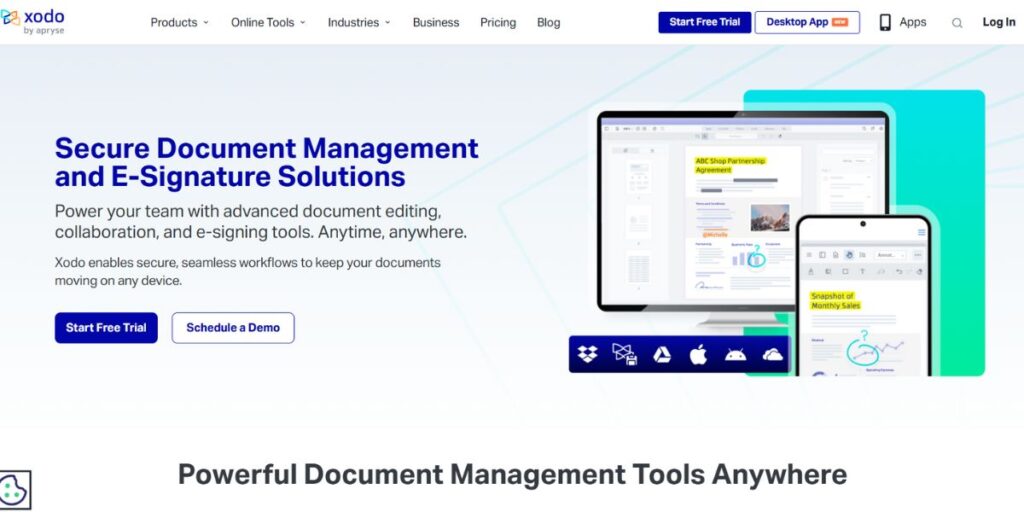
Annotation of the entire PDF document can be done through a web browser or through a native app on almost any device. This really compact and convenient UI contains all sorts of the usual markup, from highlights and comments to shapes and freehand drawings. You can share changeable files with people and store cloud-connected files in Google Drive, Dropbox, or OneDrive, where it will be located. That’s good.
Xodo allows you to do annotation right in browsing, but depending on the subscription level, it would also allow some extensive desktop editing.
Key Features:
- Works without the internet.
- Smooth your handwriting.
- Measurement tools.
- Makes annotation reports.
- Works with the Surface Pen.
Pros:
- Personal and offline.
- Simple and clean.
- Buy once, use forever.
Cons:
- Only for windows.
- Need to share manually files.
- No sharing features.
Pricing: Web Plan costs $9.99/month
Website: xodo.com
9. PDF Annotator – Best for Detailed, Offline Markups on Windows PCs
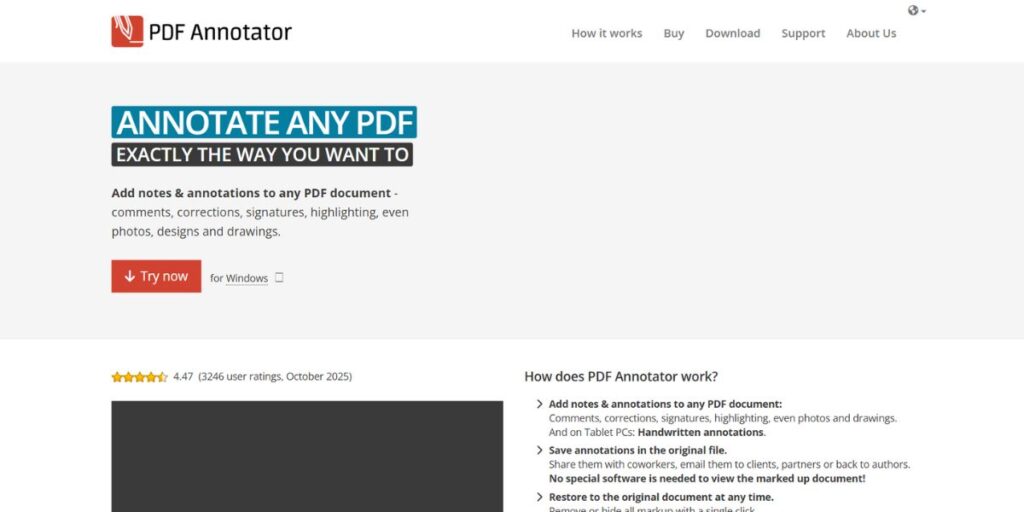
PDF Annotator knows almost everything that users can think of specific annotation needs, and it is able to provide tools for all requirements. The desktop application is as open as it goes, as it allows marking up, highlighting, and even sketching through a mouse, touch screen, or Surface Pen. The final output is finished with automatic handwriting shaping,along with tools that ensure accurate, exact measures in technical documents like CAD drawings.Different from other methods of file-sharing, this is completely offline and does not move or share PDFs.
Simple workflows are free from any problems related to cloud dependence or internet connectivity. It was privacy-focused and offered reliable automatic file sharing for files shared manually but have no support for automatic file sharing.
Key Features:
- Works without the internet.
- Smooth your handwriting.
- Measurement tools.
- Makes annotation reports.
- Works with the Surface Pen.
Pros:
- Personal and offline.
- Simple and clean.
- Buy once, use forever.
Cons:
- Only for windows.
- Need to share manually files.
- No sharing features.
Pricing: Perpetual license costs $79.95 per user for all current features.
Website: pdfannotator.com
10. Colornote – Best for Simple Mobile Annotation and Quick Markups
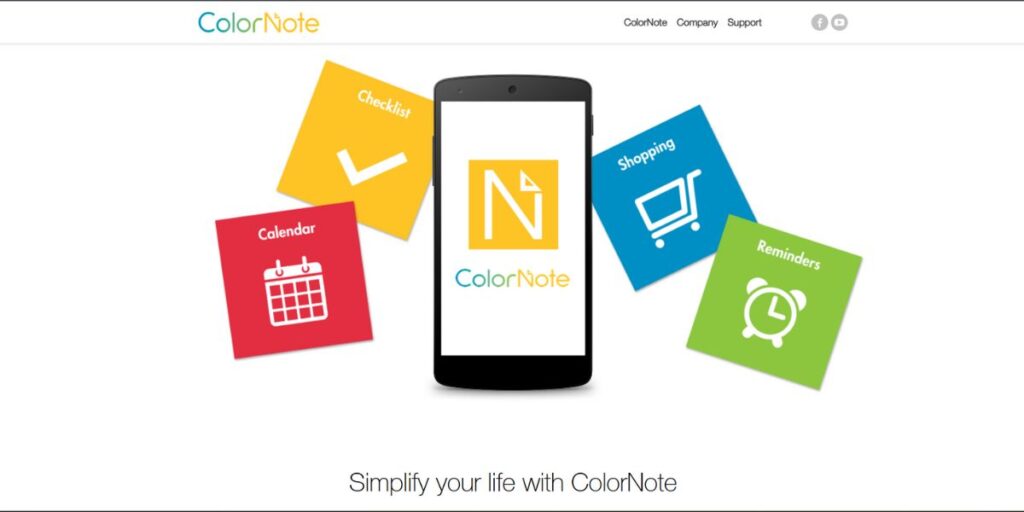
Colornote is fundamentally a note taking application. It serves well in producing any fast and not-too-cumbersome way to annotate a PDF “on the run” for those sudden, scratch-need moments for marking-up. It allows the user to highlight text effortlessly, add comments and use basic drawing tools that function just as well in a smartphone screen as in a tablet. Users can annotate during their commutes or in meetings where it’s inappropriate to take out a computer.
In short, Colornote is convenience and speed rather than many features. With Colornote, users will be able to quickly highlight text and attach typed notes or have simple markups without a complex interface or subscription.
Key Features:
- Works on mobile phones.
- Basic highlights.
- A very rudimentary drawing tool.
- The free version is available.
Pros:
- Very easy to use on mobile.
- Has a free option.
- Quick and simple.
Cons:
- Features very limited.
- Not for desktop.
- Basic functions only.
Pricing: Free tier available with basic features.
Website: colornote.com
How to Choosing the Right PDF Annotation Tool
To effectively use PDF annotation tools, one must know the technical functionality and also the workflow integration strategy. It is not as simple as downloading software and requires careful seasoning and annotation practices and even communication guidelines when operating in a team. The use of systematic methods can ensure that annotations can add value to document processes instead of making them complex.
- Select the Best Tool to Use in Your Workflow: Select annotation tools depending on your use case of dominance, requirements as a platform, and collaboration requirements.
- Set Your Annotation preferences: Adapt the settings of the tools before going into large scale markup so that there is uniformity among documents.
- Create Markup Conventions with Collaborators: When more than one reviewer is annotating shared documents it is better to agree on conventions of color coding, formats of comments and structures of feedback in advance.
- Arrange Annotations systematically: Layers, categories or tags can be used to place related annotations in the same groups and not to distribute comments randomly all over the documents.
- Export, Archive Annotated Documents: Save annotated copies routinely with explicit version numbers and date marks so as to be able to track revision history.
Conclusion
The interactive interaction with the documents is changed to the interactive collaboration and creation of knowledge with the help of modern PDF annotation tools. You may be a student planning a research project, a professional reading an agreement, or a designer editing a technical drawing: the appropriate annotation tool makes you more efficient and eases the complicated processes. Modern solutions range between free web-based packages to complex enterprise systems with AI support and have the right tools to apply in any situation and within any budget.
Successful annotation is all about the ability to align tool capabilities with real workflow needs as opposed to seeking feature richness. When making decision considerations, take into account your key use cases, team work requirements, device ecosystem and budget constraints. Use free trials and freemium to experiment with actual projects before investing money into it. The time and money spent on searching your perfect PDF annotation tool will benefit the productivity and simplify the communication process in the long-term.
FAQs
Why is the use of AI-powered PDF annotation better than conventional tools?
AI-based systems close tasks which previously took time such as text summarization, smart highlighting, and handwriting recognition and the non-AI tools need to be marked up by humans. To be able to propose annotation and follow collaboration more intelligently, AI systems recognize the context of the document and propose appropriate annotations.
Is it possible to use PDF annotation tools without using the internet?
Most desktop software such as PDF Annotator and PDF-XChange Editor can be fully used offline, whereas browser-based and collaborative tools such as Xodo and Drawboard PDF need the use of the internet to synchronize and provide real-time functionality.
What PDF annotation tool is most suitable with low budget students?
Microsoft Edge has a free basic annotation, which is part of the browser, and Notability and Goodnotes have affordable student plans and all the features necessary to do academic work on Apple devices.
Are there tools that, on tablets, positively respond to stylus input when doing PDF annotation?
Majority of the modern annotation applications support stylus input, though the quality differs greatly. Drawboard PDF, Notability, and Goodnotes have very good pressure-sensitive inking, whereas browser-based applications have only simple stylus capabilities.
I want to share annotated PDFs with other people that do not use the tool.
Export marked up PDFs as normal files that appear in any PDF viewer with the markups, or export a summary of the annotation as a standalone report. The universal compatibility of annotations is achieved by saving them as a part of the PDF file format.