
Have you ever tried sending a video through email only to get an error saying the file is too large? You’re not alone. In 2026, videos are bigger and sharper than ever—thanks to 4K, 8K, and high-quality smartphone cameras. While that’s great for viewing, it creates a big challenge when it comes to sharing these files over email.
Most email platforms like Gmail, Outlook, or Yahoo have strict attachment limits, usually around 20–25 MB. That means even a short HD video often won’t fit. If you’re a student sending a project, a professional sharing marketing content, or simply someone sending a personal clip, you’ll need smarter solutions to get around this problem.
The good news? There are several reliable and easy methods to email large video files in 2026 without losing quality, wasting time, or needing advanced tech skills. In fact, if you’ve ever wondered How to Email Large Video Files effectively, this guide will walk you through the process. In this blog, we’ll break down why sending large files via email is tricky, the best methods to do it step by step, and some pro tips to make the process smoother.
Why It’s Difficult to Send Large Video Files via Email
Sending a video by email is so easy at first; all you have to do is attach it and send it out. However, when the video size goes above the limit of the email provider, then the problem starts. Attachments have been limited mostly to 20-25 MB, which is hardly enough to hold a short HD video.
This limit is not caused by laziness on the part of email providers; it is practicality. Big attachments slow the server, require a longer time to upload, and may lead to delivery failures when the recipient has an inbox that is almost full. That’s why many businesses also rely on Email Security Software and Solutions to ensure safe, efficient, and reliable communication. Suppose a thousand people attempted to transmit 1 GB videos using Gmail in one second; it would bring the system to a halt.
The other problem is compatibility. There are various limits of different providers. As an illustration, Gmail has a size limit of 25 MB, Outlook has 20 MB, and Yahoo has the same. This is annoying when you are sharing a video with a number of people on various sites.
In a word, email has not been designed to support video sharing heavily. This is why users, practitioners, and content developers resort to smarter technologies such as cloud-based storage, compression software, or file-sharing technologies to circumvent such limitations.
Quick Comparison Table:
| Methods to Email Large Video Files | ||||
|---|---|---|---|---|
| Method | Max File Size | Ease of Use | Best For | Cost |
| Google Drive | Up to 15 GB | Very Easy | Gmail users, professionals, and personal use | Free |
| WeTransfer | 2 GB (Free) | Very Easy | Quick one-time transfers | Free / Paid Pro for 200GB |
| Compress Video File | Depends on the limit | Moderate (extra step) | Slightly oversized files just above the email limit | Free (using tools) |
| iCloud Drive (Mail Drop) | Up to 5 GB | Automatic and Easy | iPhone and Mac users | Free (with iCloud storage) |
| YouTube/Vimeo | Virtually Unlimited | Easy (needs account) | Professionals, businesses, marketing videos | Free / Paid for advanced features |
Methods to Email Large Video Files
There is no need to email big videos frustratingly. The trick is to utilise clever tools and methods that circumvent the rigid attachment boundaries. Sending a casual clip to a friend or a professional video to a client, there is a solution that will suit you. The most credible solutions in 2026 are as follows and explained step by step.
Method 1: Using Google Drive
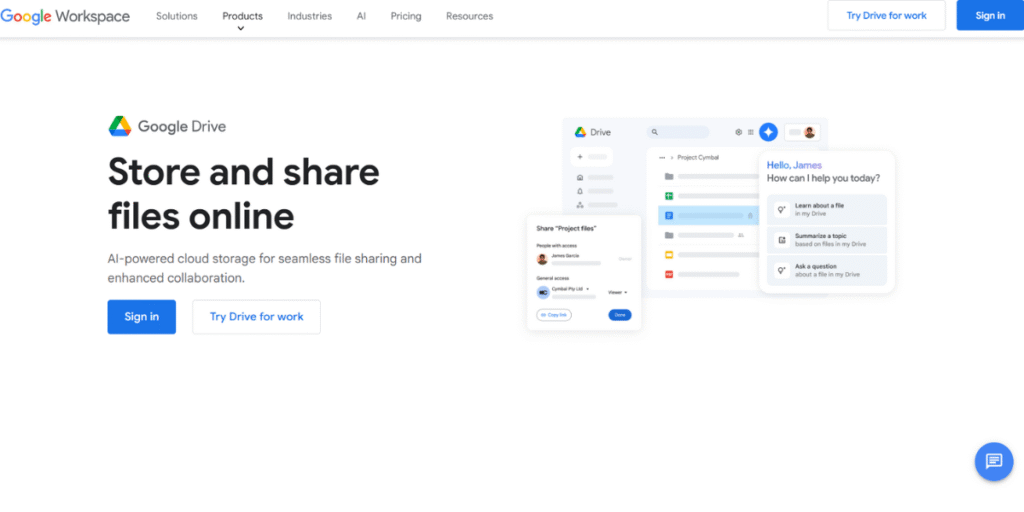
Google Drive is by far the simplest method of sending large videos in case you are on Gmail. You don’t add the file to the computer, but post it to the cloud and share a link. This would allow you to have a video that is a few GBs in size and yet would have seamless access by the recipient.
Steps:
- Go to Google Drive (drive.google.com) and click on “+ New → File Upload.”
- Select your video file and wait for it to upload (time depends on file size & internet speed).
- Once uploaded, right-click the file → Get link.
- Change permissions to “Anyone with the link can view” (or restrict it to specific email addresses).
- Copy the link and paste it inside your email.
Best for: Gmail users, professionals, and anyone sending videos up to 15 GB for free.
Why it works: No file size struggles, easy sharing, and full control over privacy.
Method 2: Using WeTransfer
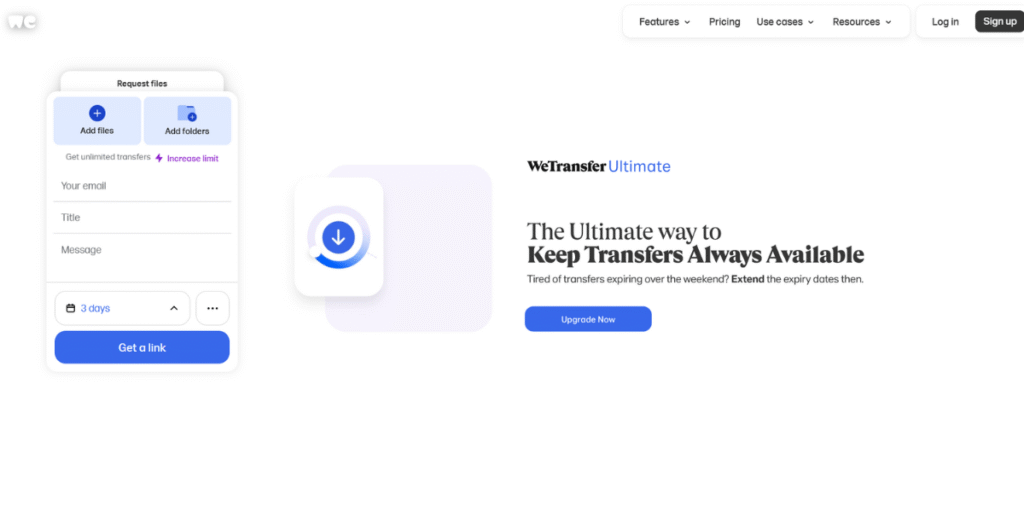
When you do not want to open accounts and upload to cloud drives, WeTransfer is the quickest method of transferring big video files through email. It is free, no sign-up is required and allows sending videos up to 2 GB in a couple of clicks.
Steps:
- Go to WeTransfer.com.
- On the homepage, click “Add your files” and upload your video.
- Enter your email address and the recipient’s email address.
- Hit Transfer and wait for the upload to finish.
- The recipient will get an email with a secure download link.
Best for: Quick one-time transfers when you don’t want to mess with cloud storage.
Why it works: No account required, fast, and simple. Just drag, drop, and send.
Method 3: Compress the Video File
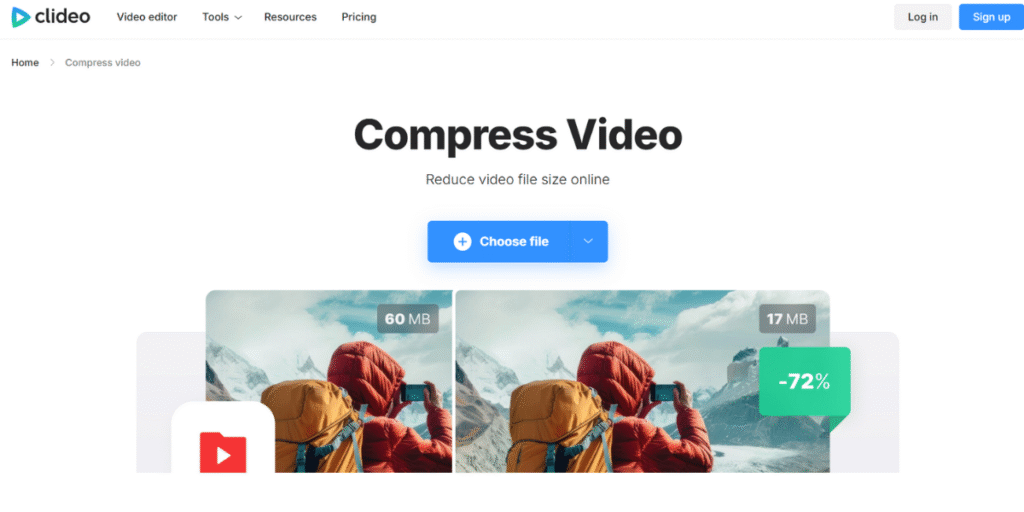
If your video is simply a little too large to email, like 40 MB rather than 25 MB. In that case, the easiest remedy is compressing the video file. Compression can have the impact of reducing file size without completely destroying quality.
Steps:
- Download a free tool like HandBrake (PC/Mac) or use online compressors such as Clideo or VEED.io.
- Upload your video and choose a compression setting (try MP4 format with H.264 codec).
- Export the compressed video.
- Now attach the smaller file directly to your email.
Best for: Smaller videos that are just slightly above the email size limit.
Why it works: Saves time—no need to use third-party platforms if the file becomes small enough.
Method 4: iCloud Drive for iPhone Users
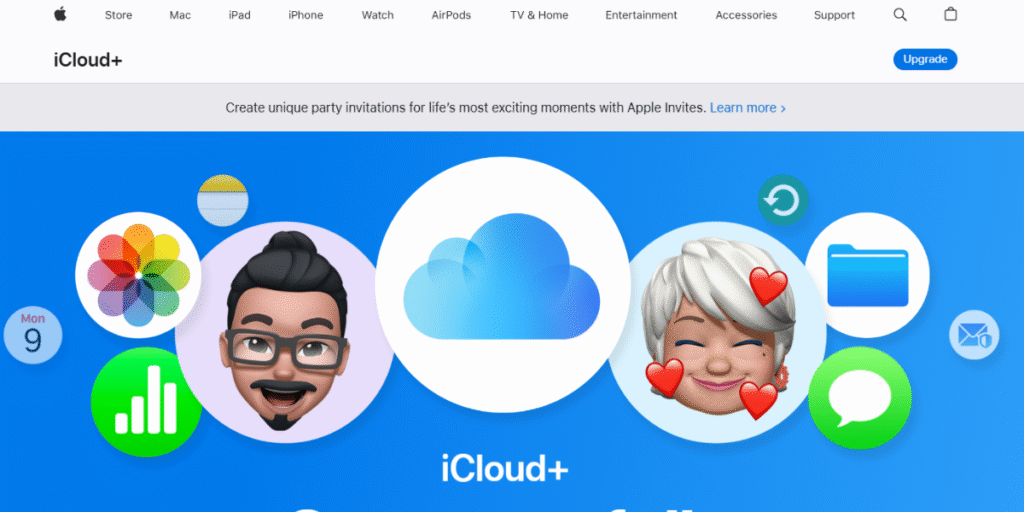
Given that you use Apple, iCloud Drive is built into your device and integrates well with Mail. There is no need to consider limits because your iPhone automatically uploads big files into iCloud and instead provides a download link.
Steps:
- Open the Mail app on your iPhone or Mac.
- Attach your video to the email as usual.
- If the file is too big, you’ll see an option to “Use Mail Drop.”
- The video uploads to iCloud, and a link is sent instead of the actual file.
Best for: iPhone and Mac users who want a hassle-free solution.
Why it works: Automatic, secure, and lets you send files up to 5 GB for free.
Method 5: Using Vimeo or YouTube

To upload high-quality video, including marketing content, training materials, and presentations, a clever choice is to upload to YouTube (unlisted) or Vimeo (private link). You do not send the file itself; a private streaming link is sent instead.
Steps:
- Create a free account on YouTube or Vimeo.
- Upload your video and set privacy to Unlisted (YouTube) or Private (Vimeo).
- Copy the shareable link.
- Paste it in your email and send it.
Best for: Professionals, marketers, teachers, or businesses.
Why it works: No size limits, easy streaming, and full control over privacy.
Best Practices for Emailing Videos (2026 Edition)
Emailing huge video files does not only require finding out how to somehow beat size restrictions, but also to ensure that the experience is easy, professional and safe for the recipient. Where video is among the most popular content formats in businesses, education, and personal use in 2026, there is a wide variety of best practices that can make a difference between success and failure.
- Reduce video size and format: Before uploading, ensure that you reduce your videos to a format that is able to balance the quality and file size. The safest option is MP4 that uses H.264 as the codec because it is compatible with nearly all devices and platforms. A 720p display can be sufficient to share casually, whereas 1080p or above is better to use in professional work.
- Consider the convenience of the recipient: Not all people have high internet speed or a big data storage. Don’t attach large files; share your video through cloud storage or private streaming links. In this manner, the receiver is given the option of downloading or merely streaming the video.
- Label your files and give context: Label your video files when you send. As an example, Team_Meeting_Recap_June2026.mp4 appears to be much more professional compared to video123.mp4. With this comes the brief message that you should include in your email stating what the video is, the duration of the video and the reason you are sharing it.
- Secure sensitive material: In case you have a video that has some personal or business information, you cannot simply send this video freely. Limit sharing configurations, add a password, or use dates of expiration on the download. This has been offered on most platforms such as Google Drive, Dropbox and Vimeo.
- Test before sending: It is always good to send the video link or the attachment first to yourself. This will assist you in ensuring the video is playing properly, the link is operating properly, and the permissions are adjusted accordingly. It avoids last moment issues and makes the delivery professional.
Advanced Tips (For Professionals)
- Professional video hosting is possible: Cloud storage is just fine, but professionals ought to consider software such as Vimeo Pro, Wistia or enterprise. You can place branded video players, monitor viewer interactions, and even block access by domain or password with these services. This provides you with increased control over a basic download link.
- Use analytics to monitor engagement: In case you are sending videos to market, train or sell, make sure to choose a platform that will give you the insights. Vimeo, Wistia and YouTube Analytics can reveal the duration of watch, the place of abandonment and whether people re-watched some sections. Such information is priceless in enhancing communication and strategy.
- Personalise your video player and links: You can send a plain video file, but it is possible to embed a branded thumbnail or use a customised video link. Video hosting platforms such as Wistia and Vimeo enable you to build video landing pages with your call-to-action button, brand colours, and logo. This renders your video professional and in tandem with the image of your company.
- Include subtitles and captions: Professionals tend to transfer videos in countries, and also over time. Captions will make sure that your message is available to users who do not speak the same language as you or to those who prefer to watch the videos without audio. Subtitles are also beneficial to SEO in case a video is placed on the internet.
- Professional compression: Do not use free compression tools that can destroy file quality, but instead choose professional compression software as Adobe Media Encoder or Final Cut Pro. They enable you to change bitrate, resolution, and codec to achieve the optimal ratio between file size and playback quality.
- Prepare version control and updates: When you have more than one version of the project, you should not upload finalvideov1.mp4, finalvideov2.mp4, etc. Rather, have all the versions stored on a single shared folder with a distinct labelling or in collaborative sites, whereby the new version will automatically override the old version. This prevents any confusion, a nd all of them are up to date.
With these professional tips, not only do you send the videos efficiently, but you also do so in a branded, professional, and trackable manner. This improves your communication and particularly when addressing clients, stakeholders or the overseas teams.
Common Mistakes to Avoid
Although the process of emailing videos is now simple due to advanced facilities, most individuals still experience issues due to minor yet expensive errors. The errors may cause your email to appear unprofessional, create delays, or even deny the recipient access to your video. Using Free tools to email large video files can help avoid many of these problems. The following are the most frequent mistakes that you must not make when sending large video files using email in 2026.
- Size: Uploading video files directly without size consideration: This is one of the most common errors that people commit; they attempt to upload large video files directly to an email. This nearly always fails, since most providers limit attachments to 20 or 25 MB. Rather, store in clouds, file transfer programs or compress files and then send.
- Disregard of video format compatibility: Sending a video in a weird format (such as .MKV or .MOV) may make the receiver unable to play it. You should always encode your video as a universal format, such as MP4 with H.264, such that it can be played without problems on virtually any platform.
- Excessive compression of the video: Compression is helpful, but going beyond it can destroy the quality of the video and audio. This is an issue when the send-out is sent to a client or professional friend. Strive to ensure intelligent compression that compresses files but does not lower the clarity, particularly business-related videos.
- Losing track of sharing settings: It is common that people post content to a cloud-based platform and forget about the settings. Consequently, the recipient receives a request access error hence unnecessary delays. Always make sure that your link is configured to either Anyone with the link can view (or whatever permissions you desire).
- Failure to include context in the body of the email: Sending a link or file without explanation appears professional, thus may be mixed up by the receiver. It is best to include a short note always, with information about the reason why the video was sent, and its duration and whether any further action is necessary (such as a review or approval).
- Sending videos without testing the link first: Another common mistake is rushing to send a video without checking the link or attachment. If the link is broken or permissions are wrong, the recipient won’t be able to access it. A quick test by sending the link to yourself first can prevent this.
Conclusion
In 2026, there will be no need to send large video files via email and make the process so frustrating. Using the proper tools and techniques, be it the Google Drive, WeTransfer, iCloud, or a professional system like the Vimeo, you can easily circumvent the email size restrictions and make sure that your videos get to the appropriate individuals without the bother. The thing is that you need to select the method that best suits you: fast transfers to share something casually, reliable cloud storage to keep some sensitive files, or one of the professional hosting options often paired with Cold Email Outreach Tools to present something to your clients.
You can ensure that your video sharing process would be smooth and professional by adhering to best practices, preventing typical pitfalls, and applying advanced tips. Whether you need to Email video files larger than 25MB, or simply share standard clips, the right approach will help you save time, preserve video quality, and provide a smooth experience to your recipient.
Read More:
FAQs
Q1. How large of a file can I email?
The email providers have limits of attachments of 20-25MB. Beyond that, anything bigger will need options such as cloud storage or transfer.
Q2. What is the most effective free method of transferring a huge video?
The most popular free alternatives are Google Drive and WeTransfer. Google Drive supports as much as 15 GB and WeTransfer supports up to 2GB per transfer without the need of an account.
Q3. Would a video compression decrease the quality of the video?
Yes, but not invariably by a large margin. When you apply the appropriate settings (MP4; H.264 codec; balanced bitrate), file size can be reduced without any apparent quality reduction.
Q4. What are the ways of sending videos safely?
Use cloud platforms that have limited sharing features, include a password on links, or create expiry dates. All these are supported on Vimeo, Dropbox, and Google drive.
Q5. Which is the most appropriate choice to professionals?
Videos Vimeo or YouTube with private/unlisted links are preferred to use in business. These platforms allow you to stream videos of high quality, manage privacy and even monitor engagement.
What is the maximum video file size you can email?
Most email providers allow attachments up to 20–25 MB. Larger files usually require cloud storage links.
Is Google Drive the best way to share large videos?
Yes. Google Drive is one of the easiest and most reliable ways to share large video files.
Can I compress a video file without losing quality?
Yes. Modern compression tools can significantly reduce file size with little to no noticeable quality loss.