

The right team collaboration tool can make it easier for employees to communicate, manage tasks, share files & keep projects moving without unnecessary delays. When conversations are scattered across multiple apps and task updates are missed, even a small project can become difficult to manage. This is especially common in remote teams and businesses where several people work on the same task.
Team collaboration software brings communication, project updates & shared information into a more organized workspace. Some tools focus on instant messaging and video meetings, while others help teams assign responsibilities, track deadlines & manage documents. Choosing the right option depends on how your team works, which features it needs & how much it can spend.
In this guide, we compare the 10 best team collaboration tools, covering their key features, advantages, limitations, pricing & free plan restrictions to help you choose the right fit for your team.
What Is Team Collaboration Tool?
Team collaboration tool is software applications that help people work together, exchange information & coordinate tasks from a shared digital workspace. They allow team members to communicate, access files, manage responsibilities & track project progress without depending entirely on emails or separate applications.
Depending on the platform, these tools can help teams with:
- Team communication: Send messages, create group conversations & share updates with colleagues.
- Video meetings: Conduct virtual meetings, discuss project requirements & connect with remote employees.
- Task management: Assign work, set deadlines & monitor the status of individual tasks.
- File sharing: Store, access & exchange documents, presentations, spreadsheets & other project files.
- Document collaboration: Work together on shared documents and keep important information accessible to the team.
- Project tracking: Organize work into tasks, boards or timelines to understand what needs attention.
- Workflow coordination: Connect different applications, automate repetitive activities & reduce manual follow-ups.
Not every platform offers all these capabilities. Some are designed primarily for communication, while others combine messaging, documentation & project management in one place.
Why Do Teams Need Collaboration Software?
Communication Gaps and Missed Updates
When project discussions happen across emails, personal messages & multiple applications, important information can easily get overlooked. Collaboration software keeps conversations and updates organized so team members can find relevant details without repeatedly asking for the same information.
Remote and Hybrid Team Coordination
Remote and hybrid teams may work from different locations or follow different schedules. Shared workspaces, messaging channels and video meetings help employees stay connected and coordinate responsibilities. Teams can also use cloud-based productivity tools to share files and manage work efficiently, while remote employee onboarding tools help new hires access training materials, understand company processes and connect with colleagues from day one.
Task Ownership and Deadline Tracking
Projects become harder to manage when responsibilities and deadlines are unclear. Collaboration tools help teams assign tasks to specific people, set due dates & monitor progress, making it easier to identify pending work before it delays the project.
File Sharing and Centralized Information
Employees often need access to briefs, reports, designs and other documents while completing their work. A shared workspace helps keep these resources organized, reduces the need to search through old messages & makes it easier for team members to work with the latest information.
Productivity and Team Accountability
Repeated follow-ups, unclear instructions & manual updates can consume time that could be spent on important work. Collaboration software gives teams a clearer view of responsibilities and progress, helping members understand their priorities and making project coordination more consistent.
Types of Team Collaboration Tools
1. Communication and Messaging Tools
These tools focus on instant messaging, group conversations, voice calls & video meetings. They are useful for teams that need quick answers and regular discussions throughout the working day. Slack, Microsoft Teams, Google Chat & Zoom Workplace are examples of platforms used for team communication.
2. Project and Task Management Tools
Project management tools help teams organize work into tasks, assign owners, set deadlines & track progress. Depending on the platform, they may include Kanban boards, calendars, timelines, workload views & automation. ClickUp, Asana, Trello & monday.com offer features for coordinating projects and monitoring responsibilities.
3. Document Sharing and Collaborative Workspaces
These platforms help teams create, store, organize & collaborate on documents and shared information. They are particularly useful when employees need a common place for project briefs, internal guidelines, meeting notes and reference material. Notion is one example of a workspace built around documents, databases & connected information.
4. All-in-One Team Collaboration Platforms
All-in-one platforms combine several collaboration functions, such as messaging, task management, file sharing, meetings & integrations. They can reduce the need to switch between separate applications, although the available features depend on the plan. ClickUp, Microsoft Teams & monday.com are examples of tools that bring multiple workplace functions together.
Key Features To Look For In Team Collaboration Software
- Real-Time Messaging and Video Meetings: Look for direct messages, group chats, searchable conversations & reliable audio or video meetings if your team communicates frequently. Meeting limits, participant capacity and options for sharing screens can also matter, especially for remote teams.
- Task Assignment and Project Tracking: A useful collaboration tool should make it easy to assign responsibilities, set deadlines & check task status. Boards, calendars, timelines and progress views can help managers identify delays while allowing team members to understand what they need to complete next.
- File Sharing and Document Collaboration: Check whether the platform supports shared files, collaborative editing & convenient access to project documents. Storage limits and maximum file sizes are worth reviewing because free plans may restrict how much content teams can upload or retain.
- Integrations With Other Tools: Integrations allow collaboration software to connect with the applications your team already uses, such as Google Drive, Microsoft 365, calendars or project management systems. Before choosing a plan, check which integrations are included and whether any limits apply to the free version.
- Permissions and Security: Businesses may need controls for deciding who can access conversations, files, workspaces & sensitive information. Depending on the team’s requirements, useful features can include two-factor authentication, administrator controls, single sign-on and user access management.
- Automation and AI Features: Automation can handle repetitive activities such as updating task statuses or sending notifications when a deadline approaches. AI features may also help summarize meetings, find information or draft content, but availability and usage limits can vary by platform and subscription plan.
- Mobile Access and Ease of Use: A tool should be easy for team members to learn and convenient to use across desktop and mobile devices. A clear interface, useful notifications and reliable mobile access can make it easier for employees to follow updates and complete tasks while away from their desks.
Comparison of Best Team Collaboration Tool
| Tool | Best For | Main Strength | Real Pricing (Annual Commitment) | Important Free Tier Limits |
| Slack | Fast-paced team messaging | Channels, app integrations & huddles | Pro: ₹245.25/user/month | 90-day message history, up to 10 apps |
| Microsoft Teams | Business communication and Microsoft 365 users | Integration with Microsoft 365 apps | Microsoft 365 Business Basic: ₹170/user/month | Free plan has meeting duration and participant limits |
| Google Chat | Teams using Google Workspace | Direct integration with Gmail, Drive and Docs | Google Workspace: Starting at ₹99/user/month | Free for individual Gmail users; business features require a paid Workspace plan |
| Zoom Workplace | Online meetings and hybrid teams | Video meetings, AI meeting tools and chat | Pro: $14.16 per user/month | 40-minute group meetings, up to 100 participants |
| Discord | Informal teams and voice communication | Always-on voice channels and community-style spaces | Free: $0; Nitro Basic: $2.99/month; Nitro: $9.99/month | Smaller file uploads and basic screen-sharing quality |
| ClickUp | Teams consolidating work tools | Tasks, Docs, goals and project tracking | Unlimited: $7/user/month; Business: $12/user/month | 60 MB storage on Free Forever |
| Asana | Structured project coordination | Task ownership, timelines and project tracking | Starter: $10.99/user/month | Free Personal plan supports up to 2 users |
| Trello | Simple project planning | Easy-to-use Kanban boards | Standard: $5/user/month | Up to 10 boards per Workspace |
| monday.com | Visual workflows and automation | Custom boards, dashboards and automation | Basic: $9/seat/month; Standard: $12/seat/month | Up to 2 seats and 3 boards |
| Notion | Internal wikis and shared knowledge | Flexible documents, databases and team workspaces | Plus: $10/member/month; Business: $20/member/month | Free plan is primarily designed for individual use |
List Of 10 Best Team Collaboration Tools
1. Slack
- Website: https://slack.com/
- Best For: Teams that need fast, organized messaging and integrations with their existing work tools.
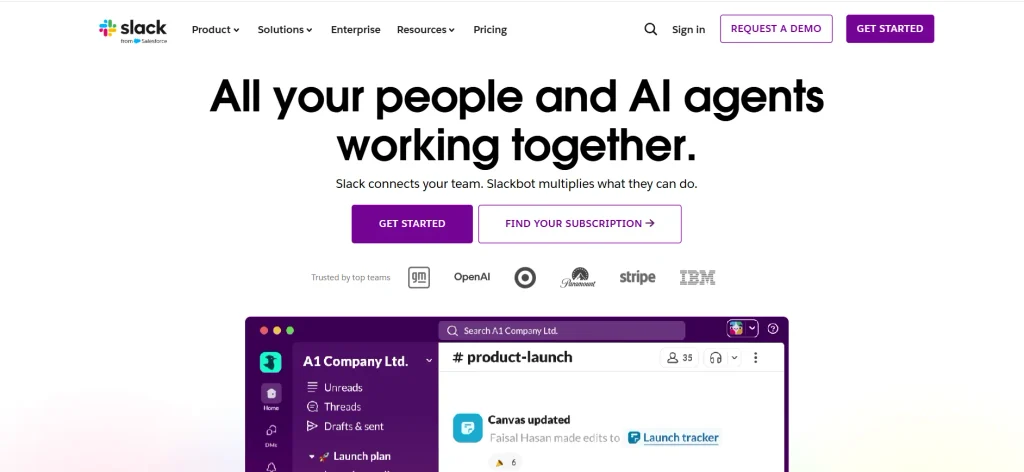
Slack is a team messaging platform designed to keep workplace conversations organized. Instead of handling every discussion through email, teams can create channels for projects, departments, clients or specific tasks. This makes it easier to find relevant messages and follow ongoing work.
Slack also supports direct messages, file sharing, audio and video huddles, and integrations with other workplace apps. Its paid plans provide additional features for teams that need more history, administration and collaboration options.
Key Features
- Channels for organizing conversations by project, department or topic.
- Direct messages and huddles for quick communication.
- Integrations with workplace apps and productivity tools.
- Search and AI-powered features for finding information and summarizing conversations.
Pros
- Keeps team conversations organized in dedicated channels.
- Reduces the need for lengthy internal email threads.
- Connects with many third-party workplace applications.
- Supports quick discussions through messages and huddles.
Cons
- Frequent notifications can interrupt focused work.
- Important information can get buried in busy channels.
- The free plan limits message history to 90 days.
- Advanced administration and collaboration features require paid plans.
Pricing
- Free plan available
- Pro: ₹245.25 per user/month
2. Microsoft Teams
- Website: https://www.microsoft.com/en-in/microsoft-teams/
- Best For: Businesses that already use Microsoft 365 and want communication and document collaboration together.
Microsoft Teams combines workplace messaging, meetings, calling and file collaboration in one platform. It is particularly useful for organizations that already rely on Microsoft 365 applications such as Word, Excel, Outlook and OneDrive.
As a team collaboration tools, it allows team members to discuss work in channels, arrange meetings and collaborate on shared documents without switching between multiple applications. Businesses can also benefit from administrative controls and integration with Microsoft’s wider productivity ecosystem. The best plan depends on whether a team needs Teams alone or a broader Microsoft 365 subscription.
Key Features
- Team channels, group chats and direct messaging.
- Online meetings, calls and screen sharing.
- Collaboration with Microsoft 365 apps and shared files.
- Business administration, identity management and security controls on eligible plans.
Pros
- Works naturally with the Microsoft 365 ecosystem.
- Brings chats, meetings and shared work into one place.
- Supports both desktop and mobile collaboration.
- Suitable for organizations that need managed user access and security.
Cons
- The range of plans can make pricing difficult to compare.
- Some features require a qualifying Microsoft 365 subscription.
- The interface may feel complex to users who only need basic messaging.
- Teams may need training to use its wider set of features effectively.
Pricing
- Free plan available
- Microsoft 365 Business Basic: ₹170 per user/month
3. Google Chat
- Website: https://chat.google.com/
- Best For: Individuals and businesses that rely on Gmail, Google Drive and Google Workspace.
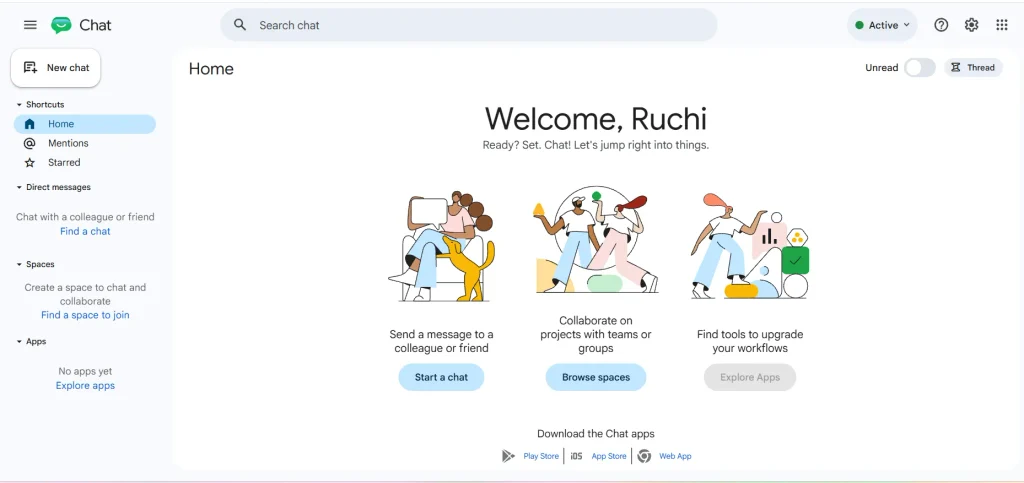
Google Chat is a messaging tool for people and teams who work with Google’s productivity applications. Users with a standard Gmail account can chat without purchasing a separate collaboration subscription. For businesses, Google Chat is included with Google Workspace, where conversations can connect with tools such as Google Drive, Docs, Meet and Calendar. Spaces help teams organize discussions around projects and ongoing work. This makes Google Chat a practical option for teams that want communication to fit into their existing Google workflow.
Key Features
- Direct messages and group conversations.
- Spaces for organizing project and team discussions.
- Integration with Google Drive, Docs, Meet and Calendar.
- Searchable conversations and shared links to workplace files.
Pros
- Easy to use for people already familiar with Gmail.
- Connects conversations with Google Workspace files and meetings.
- Individual users can access the free version with a personal Gmail account.
- Reduces the need to switch between separate communication and document tools.
Cons
- Business features depend on the selected Google Workspace plan.
- Teams using Microsoft 365 or other ecosystems may find it less convenient.
- It offers fewer dedicated project management features than specialist tools.
- Advanced administration and organizational controls are tied to business subscriptions.
Pricing
- Free plan available
- Google Workspace: Starts at ₹99 per user/month
4. Zoom Workplace
- Website: https://zoom.us/
- Best For: Remote and hybrid teams that rely on video meetings, presentations and virtual collaboration.
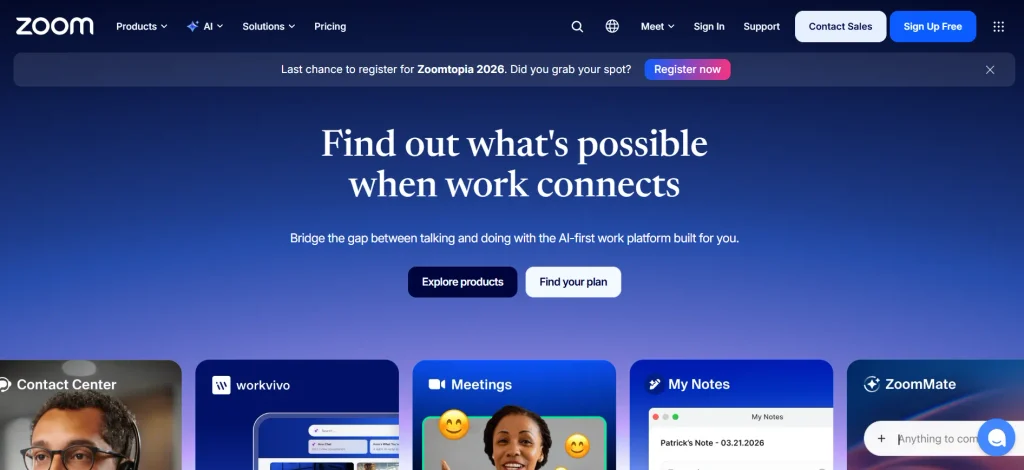
Zoom Workplace brings video meetings, messaging and other work tools into a shared platform. It is best known for online meetings, making it useful for remote teams, client calls, interviews and discussions between people in different locations.
Depending on the plan, users can also access features such as AI meeting summaries, notes, whiteboards, clips and task management. Its free Basic plan is useful for trying the platform, although the 40-minute limit on group meetings can be restrictive for longer sessions. Teams that meet frequently may need a paid plan.
Key Features
- Video meetings with screen sharing and participant controls.
- Team chat for ongoing workplace conversations.
- AI meeting summaries and note-taking on eligible plans.
- Whiteboards, clips, calendar connections and task-related tools.
Pros
- Well suited to teams that depend on regular video meetings.
- Makes screen sharing and remote presentations straightforward.
- Includes additional tools beyond video conferencing.
- Offers a free plan for basic meeting and communication needs.
Cons
- Group meetings on the free plan are limited to 40 minutes.
- Some AI features have usage limits on the free plan.
- Teams may need other software for detailed project management.
- Paid features and add-ons can increase the overall cost.
Pricing
- Free plan available
- Pro: $14.16 per user/month
5. Discord

- Website: https://discord.com/
- Best For: Small creative teams, online communities and groups that prefer informal voice and text communication.
Discord started as a communication platform for gaming communities, but its voice channels, text channels and low-friction conversations can also suit informal teams. Members can join a voice channel to discuss work without scheduling a formal meeting, while text channels keep different topics separate.
As a team collaboration tools, Discord can be useful for small creative groups, online communities and teams that prefer a more casual communication style. However, businesses that require formal project tracking, advanced administration or centralized workplace documentation may need additional software.
Key Features
- Text channels for topic-based conversations.
- Voice channels for quick, ongoing discussions.
- Screen sharing and video communication.
- File sharing and community management features.
Pros
- Free access to core communication features.
- Voice channels support informal, spontaneous conversations.
- Channels help separate discussions by subject.
- Useful for communities and teams that communicate frequently.
Cons
- Its informal design may not suit every corporate environment.
- It lacks built-in project tracking comparable to dedicated management tools.
- Free file uploads have size limits.
- Business administration and structured document management may require other tools.
Pricing
- Free: $0 for core features.
- Nitro Basic: $2.99/month.
- Nitro: $9.99/month.
6. ClickUp
- Website: https://clickup.com/
- Best For: Teams that want to manage tasks, documents, goals and projects through a single platform.
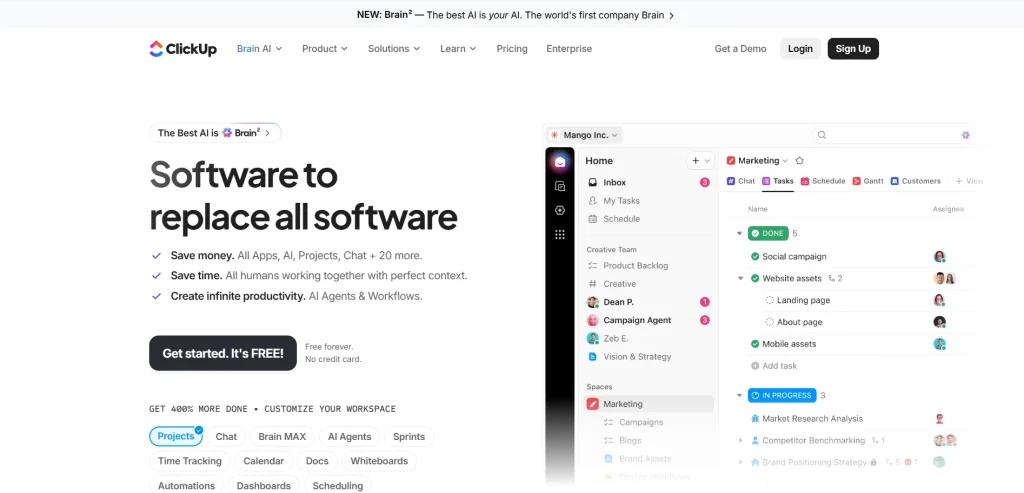
ClickUp is a work management platform that brings tasks, documents, goals and project tracking into one workspace. It is useful for teams that want to reduce the number of separate tools they use to manage daily work. Users can create tasks, assign responsibilities, set deadlines and view projects through different layouts.
ClickUp also includes collaborative Docs, Kanban boards, sprint management and time tracking on eligible plans. Its Free Forever plan offers several core features, while paid plans add more storage, integrations and advanced management options.
Key Features
- Task creation, assignments and deadline tracking.
- Multiple project views, including Kanban boards, calendars and Gantt charts.
- Collaborative Docs, goals and portfolio management.
- Integrations, time tracking and workflow management on eligible plans.
Pros
- Combines project management and documentation in one workspace.
- Offers several ways to view and organize tasks.
- The free plan supports unlimited tasks and free-plan members.
- Paid plans provide additional features for growing teams.
Cons
- The wide range of features can take time to learn.
- The interface may feel crowded for users who only need basic task tracking.
- The Free Forever plan has a 60 MB storage limit.
- Advanced features and greater storage flexibility may require a paid plan.
Pricing
- Free plan available
- Unlimited: $7 per user/month
- Business: $12 per user/month
7. Asana
- Website: https://asana.com/
- Best For: Teams managing structured projects that need clear responsibilities, deadlines and progress tracking.
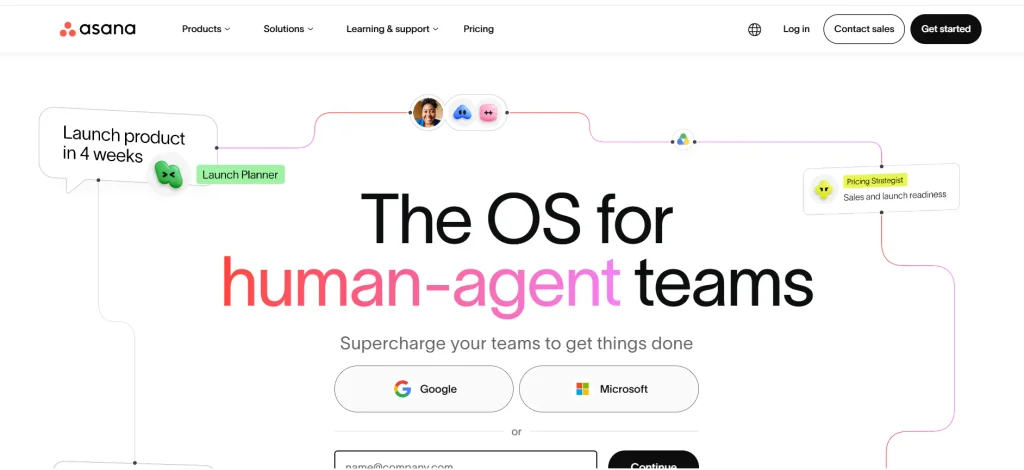
Asana helps teams plan projects, assign tasks and track progress against deadlines. It is especially useful when several people contribute to a project and each task needs a clear owner. Teams can organize work into projects, use list or board views and monitor progress through timelines on eligible plans.
Its integrations also help connect project work with other workplace applications. The free Personal plan is suitable for individuals or pairs, while larger teams may need a paid subscription for additional project management capabilities.
Key Features
- Task assignments, due dates and project organization.
- List, board and calendar views.
- Project timelines and progress tracking on eligible plans.
- Integrations with workplace and productivity applications.
Pros
- Makes task ownership and deadlines easier to follow.
- Helps teams understand project progress.
- Offers multiple views for organizing work.
- Connects with a broad range of third-party applications.
Cons
- The free Personal plan is limited to two users.
- Advanced reporting and planning features require eligible paid plans.
- Teams with complex workflows may need time to configure projects.
- Costs can increase as more team members need paid access.
Pricing
- Free plan available
- Starter: $10.99 per user/month
8. Trello
- Website: https://trello.com/
- Best For: Individuals and small teams that need a straightforward visual system for organizing tasks and tracking progress.
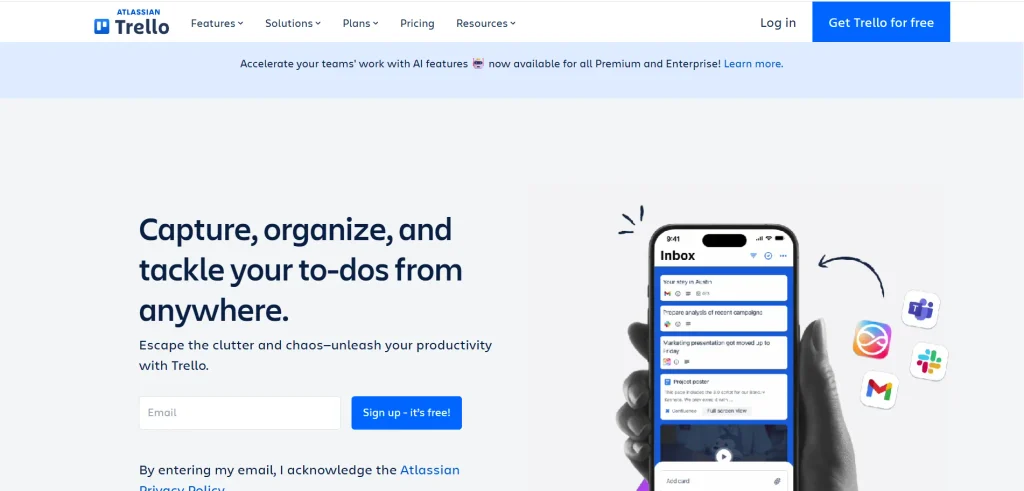
Trello uses Kanban-style boards to help teams organize work visually. Each board contains lists, and individual cards represent tasks that can move through stages such as To Do, In Progress and Completed. Team members can add descriptions, checklists, attachments, due dates and comments to cards.
This makes Trello an effective team collaboration tools for managing content calendars, marketing campaigns, editorial workflows and smaller projects. Its free plan includes unlimited cards and up to 10 boards per Workspace, making it a practical starting point for teams with straightforward planning needs.
Key Features
- Kanban boards, lists and task cards.
- Assignees, due dates, checklists and activity history.
- Power-Ups for extending board functionality.
- Email, Slack and Microsoft Teams connections for capturing tasks.
Pros
- Easy to understand without extensive training.
- Makes task status visible at a glance.
- Works well for content calendars and recurring workflows.
- The free plan includes unlimited cards.
Cons
- Complex projects can become difficult to manage across many boards.
- Advanced project views and features may require a paid plan.
- Free file attachments are limited to 10 MB per file.
- Detailed resource planning and reporting are less comprehensive than in some dedicated project management tools.
Pricing
- Free plan available
- Standard: $5 per user/month
- Premium: $10 per user/month
9. monday.com
- Website: https://monday.com/
- Best For: Teams that prefer visual project tracking and customizable workflows with automation options.
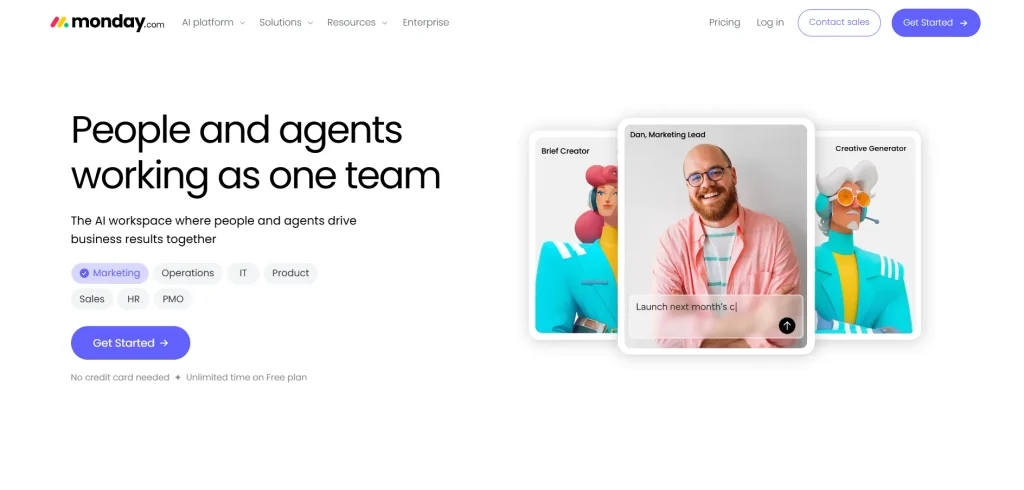
monday.com is a visual work management platform that lets teams build workflows around their projects and processes. Its boards use columns to track information such as status, ownership, dates and priorities. Teams can also create dashboards to monitor progress and use automations to reduce repetitive updates.
The platform is useful for marketing teams, operations departments and businesses that want to adapt their workflows without building a system from scratch. The free plan supports up to two seats and three boards, while paid plans provide more collaboration and automation capabilities.
Key Features
- Customizable boards for tasks, projects and workflows.
- Dashboards for viewing project progress and key information.
- Automations and integrations on eligible plans.
- Timeline, Gantt and calendar views on supported plans.
Pros
- Visual boards make project status easy to understand.
- Teams can adapt workflows to different business processes.
- Dashboards help consolidate project information.
- Automations can reduce repetitive administrative work.
Cons
- The free plan is limited to two seats and three boards.
- Some useful views and automation options require paid plans.
- Teams may need time to configure boards to their requirements.
- Costs can rise as more seats and advanced features are added.
Pricing
- Free plan available
- Basic: $9 per seat/month
- Standard: $12 per seat/month
- Pro: $19 per seat/month
10. Notion
- Website: https://www.notion.com/
- Best For: Teams that need a shared knowledge base for documents, internal processes, project notes and databases.
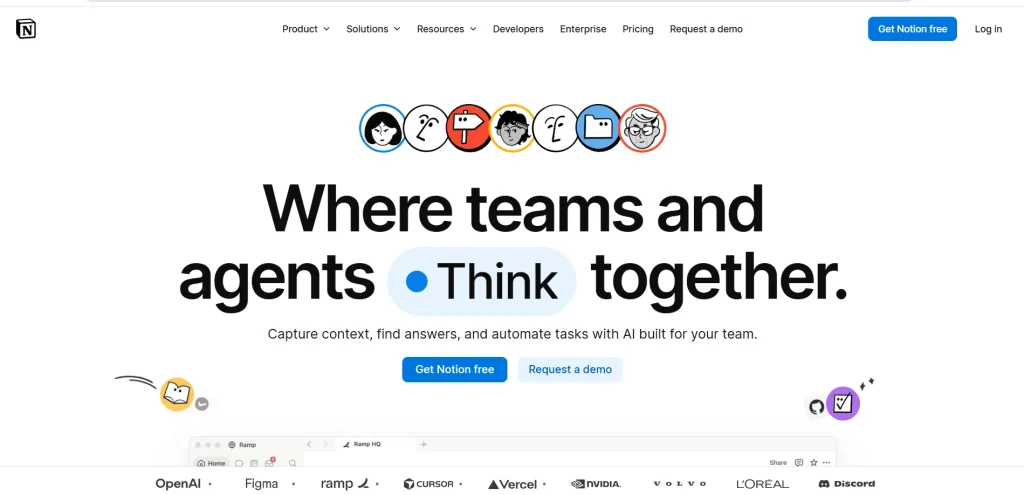
Notion combines documents, databases, notes and internal wikis in a flexible workspace. Teams can use it to maintain company knowledge, write project briefs, organize meeting notes and create shared databases. Pages can be linked together, allowing people to move between related information without searching through separate documents.
Notion is particularly useful when a team needs a central place for guidelines, processes and project information. Its free plan is designed mainly for individual use, while paid plans provide additional collaboration features for teams.
Key Features
- Customizable pages for documents, notes and internal wikis.
- Databases with properties, filters and different views.
- Shared workspaces for project information and team knowledge.
- Connections with other apps and additional AI capabilities on eligible plans.
Pros
- Keeps documents and reference material in one searchable workspace.
- Flexible pages and databases suit different team workflows.
- Useful for building internal knowledge bases and standard operating procedures.
- Can support project planning alongside documentation.
Cons
- Setting up a well-organized workspace can take time.
- Large workspaces may become difficult to navigate without clear structure.
- Some collaboration and administration features require paid plans.
- It does not replace every dedicated project management or communication tool.
Pricing
- Free plan available
- Plus: $10 per member/month.
- Business: $20 per member/month.
How To Choose The Best Team Collaboration Tools?
Choosing the best team collaboration tool depends on how your team works, what it needs to manage and how much it can spend. A tool with many features is not always the right choice. Focus on the features your team will use regularly.
Consider Team Size and Working Style
Small teams may need simple messaging, file sharing and task management, while larger teams may require advanced permissions, reporting and workflow controls. Remote teams should prioritize video meetings and asynchronous communication, whereas office-based teams may focus more on task coordination and shared documents.
Identify Your Main Requirement
Start by identifying the main problem you want to solve. If conversations are scattered, consider Slack or Microsoft Teams. For project tracking, Asana and Trello may be more suitable, while ClickUp combines tasks, documents and goals in one workspace. Marketing teams coordinating campaigns, assigning tasks and tracking deadlines can also explore marketing project management tools to organize their workflows more effectively.
Check Ease of Adoption
A collaboration tool should be easy for team members to understand and use. Complicated interfaces can slow down adoption, even when the software offers useful features. Look for a clear dashboard, simple navigation and a workflow that fits your team’s existing habits.
Review Integrations With Existing Software
Check whether the tool connects with the applications your team already uses, such as Google Drive, Microsoft 365, calendars and project management software. Useful integrations reduce manual work and prevent information from becoming scattered across multiple platforms.
Evaluate Security and Access Permissions
Businesses handling confidential documents or customer information should review access controls, authentication options and administrative settings. Larger organizations may also need centralized user management and compliance-related features. Check which security controls are included in the selected plan.
Compare Pricing and Scalability
Compare the cost per user with the features available in each plan. Free versions can work for individuals or small teams, but limits on users, storage, message history or meetings may become a problem as the team grows. Choose a plan that meets current needs without making future upgrades unnecessarily expensive.
Team Collaboration Trends In 2026
Team collaboration software is moving beyond basic messaging and video calls. In 2026, the focus is on connecting conversations with project work, reducing repetitive tasks and helping teams share information without requiring everyone to be online at the same time.
- AI Meeting Summaries and Action Items: AI meeting assistants can turn conversations into summaries, highlight decisions and identify follow-up tasks. This helps team members review important details without replaying an entire recording. However, teams should check AI-generated notes before relying on them for important decisions.
- Automated Task Workflows: Automation is increasingly connecting routine actions across collaboration platforms. For example, a completed form can create a task, assign it to a team member and notify the relevant channel. These workflows reduce manual updates, although teams still need clear rules for task ownership and approval.
- Unified Communication and Project Management: Teams are increasingly looking for platforms that connect chat, meetings, documents and project tracking instead of keeping each activity separate. When a meeting decision can be linked to a document and converted into a tracked task, employees spend less time switching between applications and searching for updates.
- Asynchronous Collaboration for Remote Teams: Asynchronous collaboration allows employees to share updates, review documents and respond to tasks at different times. Features such as recorded video updates, shared documents and persistent message threads help remote teams work across schedules without arranging a meeting for every discussion.
Final Verdict
Team collaboration tools can make daily work easier, but their real value lies in how well they fit into a team’s existing workflow. When project discussions, files and task updates are easier to manage, employees can spend less time searching for information and more time completing their work. However, adding too many tools can create the same problem they are meant to solve by spreading information across more platforms.
Before making a final decision, test the software with a real project and see how your team uses it. Check whether everyone can follow updates, find important files and understand what needs to be done next. Also review the free plan limits and paid features so that you know what you will need to pay for as your team grows. A tool that simplifies these everyday tasks and keeps work organized is a more practical choice than one that offers many features your team rarely uses.
Frequently Asked Questions
1. Which Is The Best Team Collaboration Tool?
There is no single best option for every team. Slack and Microsoft Teams are strong choices for communication, ClickUp and Asana for project tracking, and Notion for organizing shared knowledge.
2. What Is The Best Free Team Collaboration Software?
The right free option depends on your requirements. Google Chat offers free messaging for individual Gmail users, while Trello, ClickUp and Slack provide free plans with different feature and usage limits.
3. What Is The Difference Between Team Collaboration And Project Management Tools?
Team collaboration tool focus on communication, file sharing and working together. Project management tools focus more on tasks, deadlines, responsibilities and progress tracking, although many platforms combine both functions.
4. Which Collaboration Tool Is Best For Remote Teams?
Slack, Microsoft Teams and Zoom Workplace can support remote communication through messaging and meetings. Teams that also need detailed task tracking can consider ClickUp or Asana.
5. Can Team Collaboration Tool Improves Productivity?
Yes. They can reduce scattered communication, make responsibilities clearer and keep project information in one place. The benefits depend on choosing suitable features and establishing clear team workflows.